Upgrading from No Card to Physical Card
Introduction
This topic outlines the step-by-step process for upgrading a customer's digital card to a physical card. The system deactivates the digital card after the physical card is activated.
Steps to Upgrade from No Card to a Physical Card
-
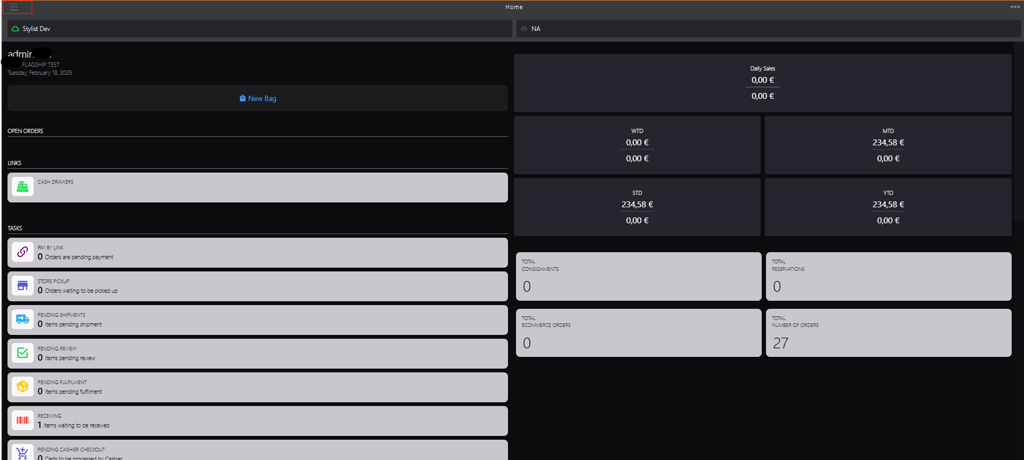
Click the burger menu.
-
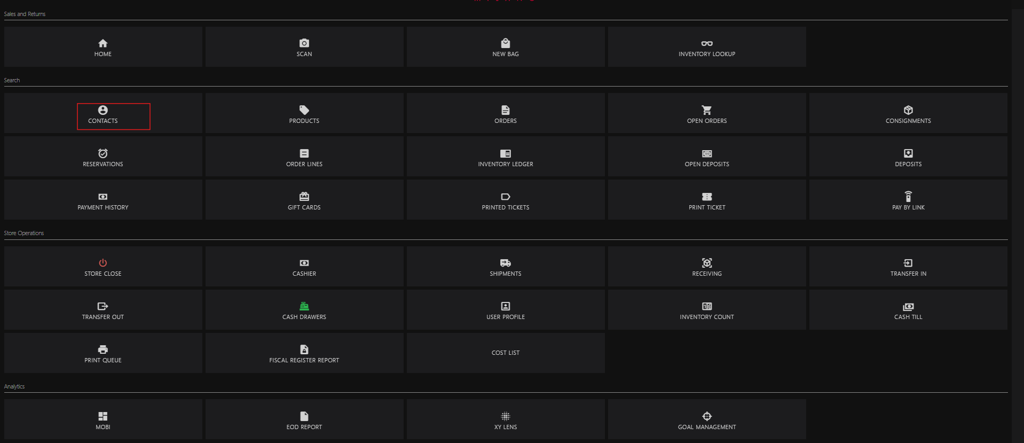
Click Contacts.
-
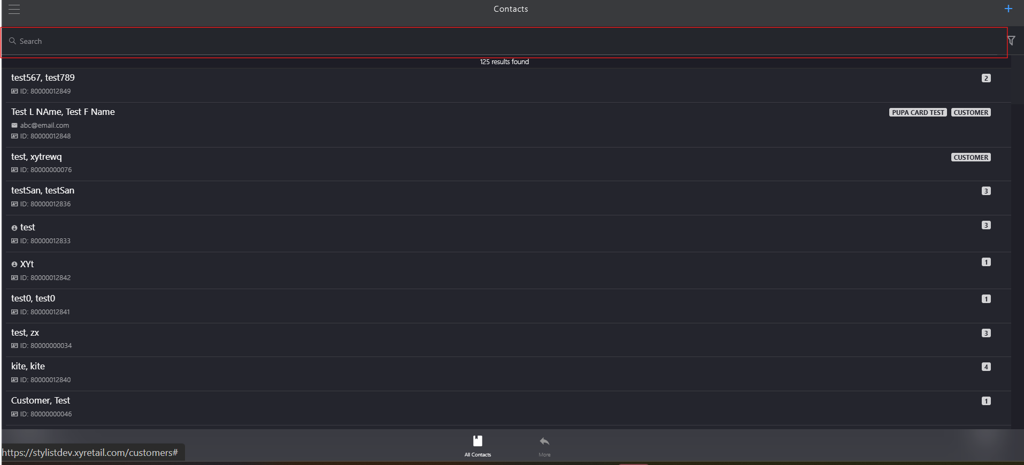
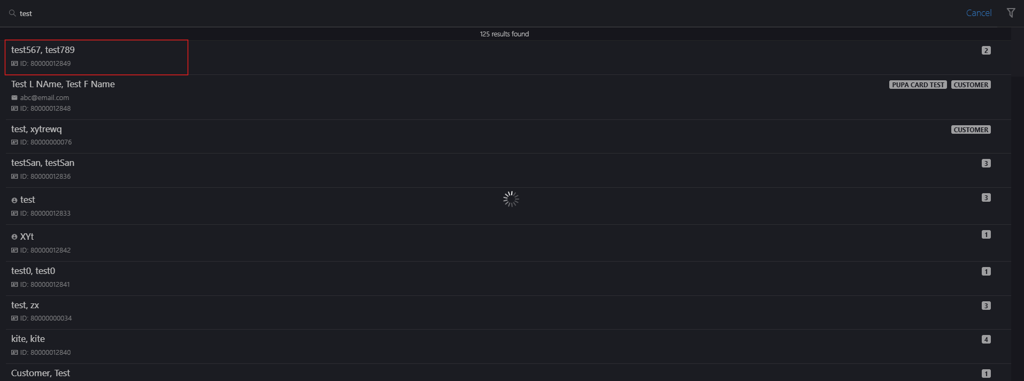
Enter the customer name in the search box.
-
Click the respective customer name.
-
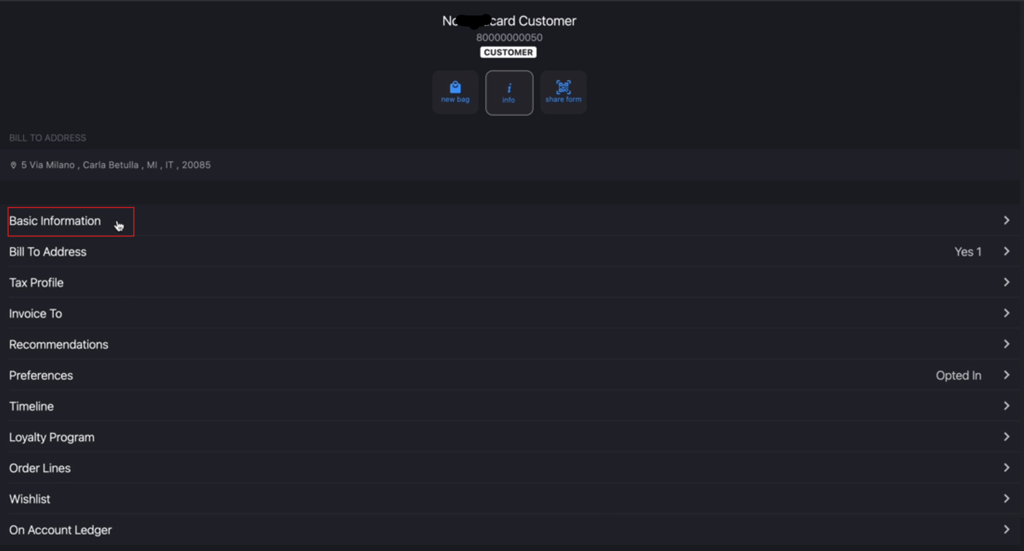
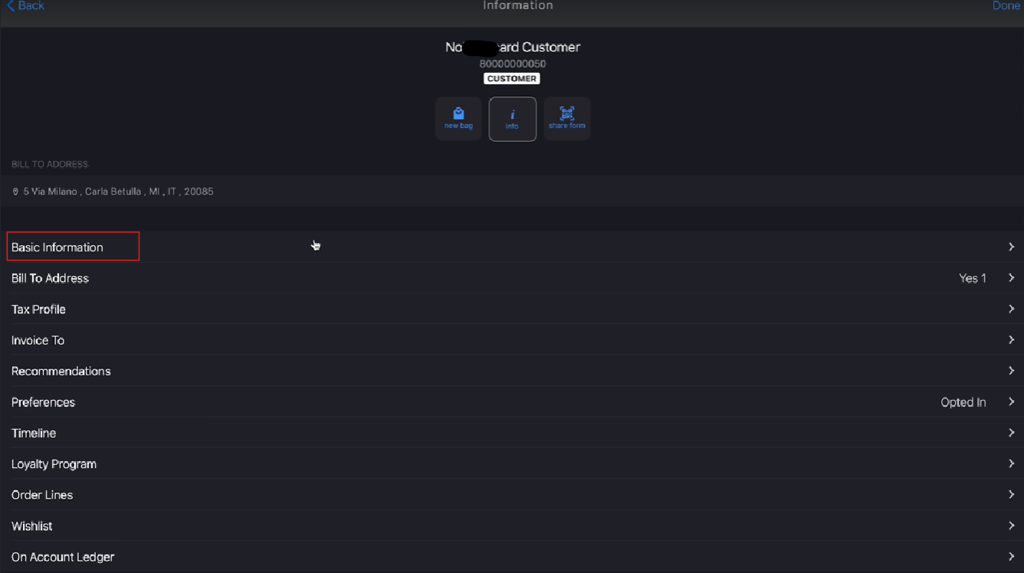
Click info.

-
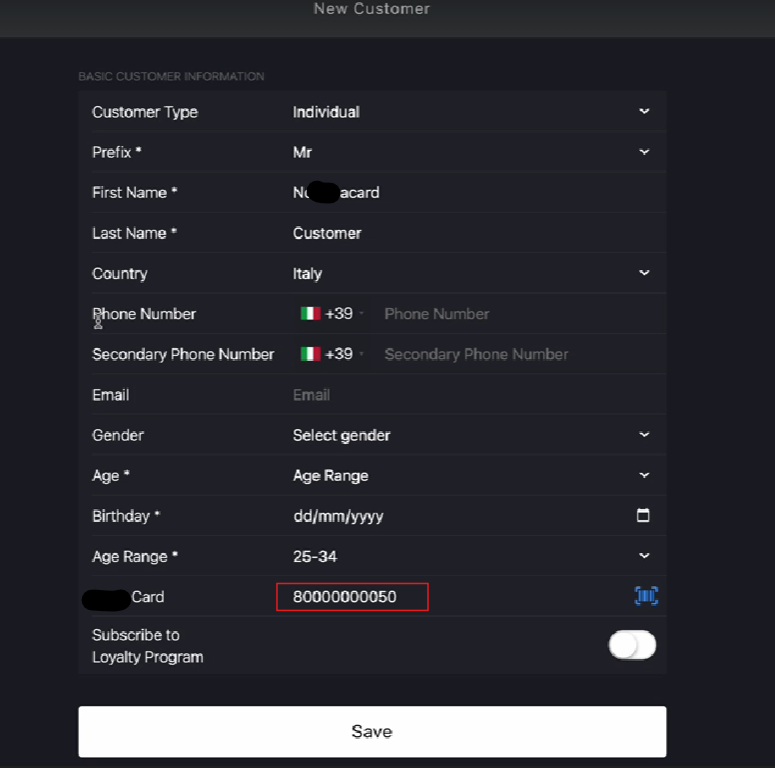
Click Basic Information to go to New Customer page.
-
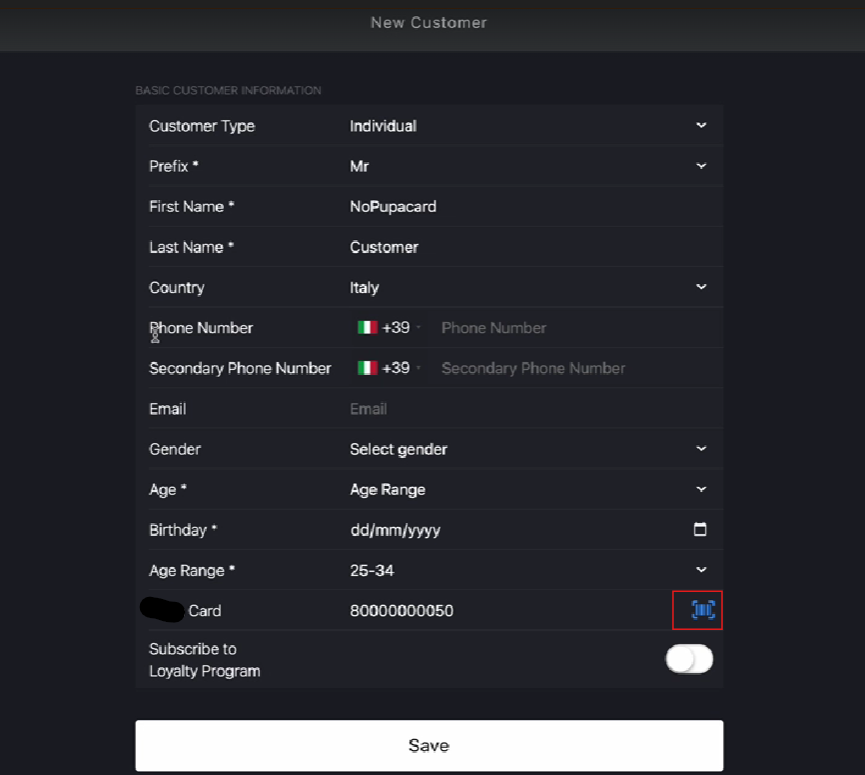
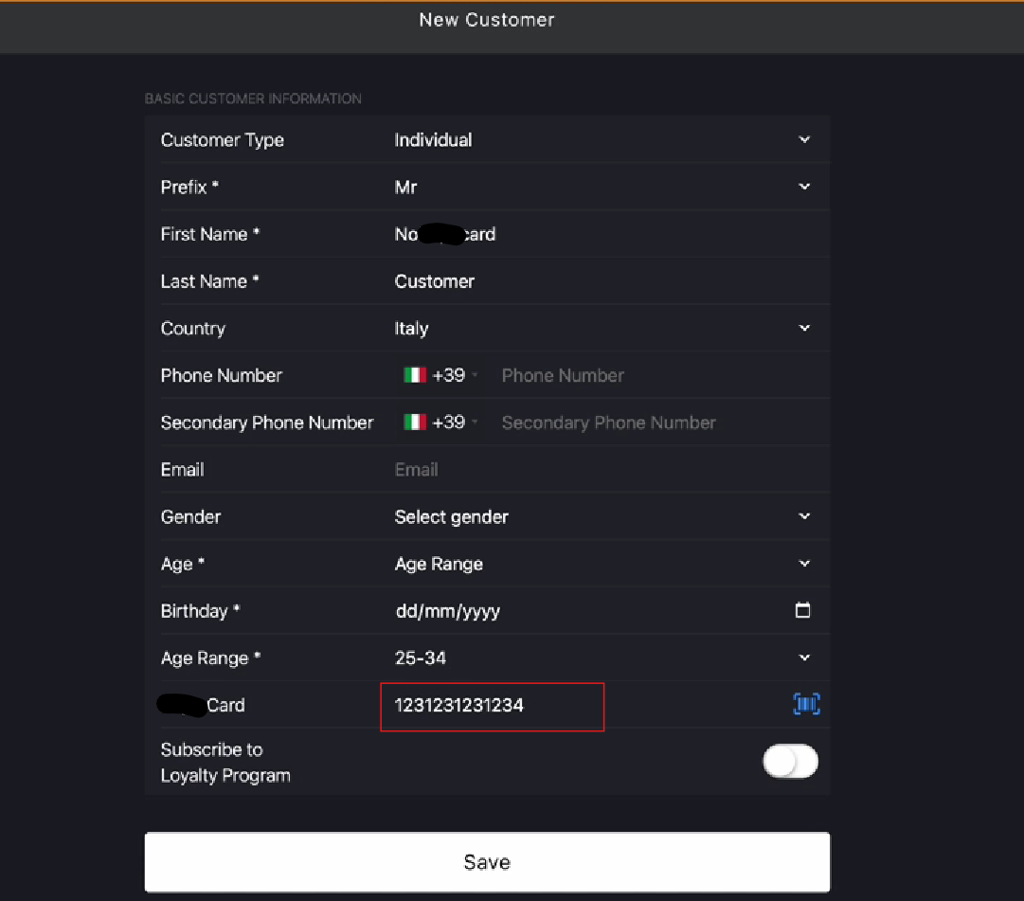
Scan the new card barcode in the Card field.
-
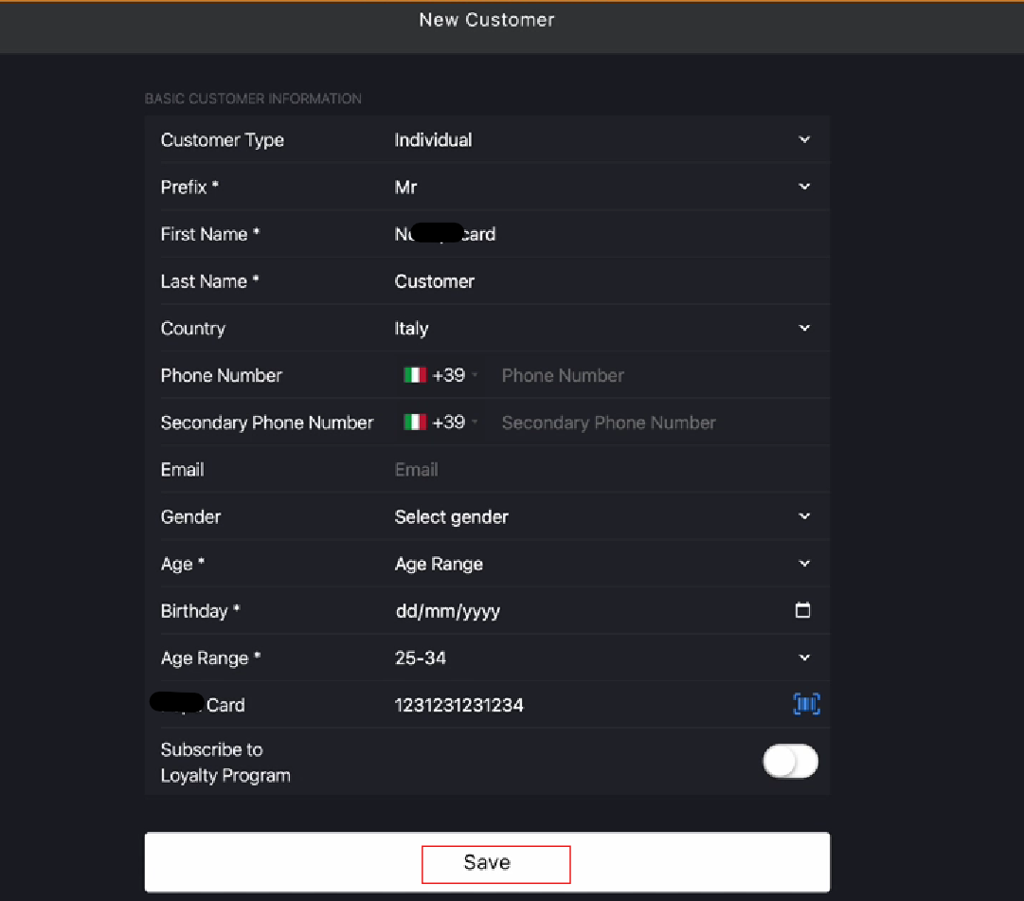
Click Save to complete the physical card registration.
-
Click Basic Information again to verify the new physical card number is registered.