Setting up Shipping Address
Introduction
This topic explains the step-by-step procedure for adding a shipping address after an order has been confirmed during an in-store purchase.
Steps to Add Shipping Address
-
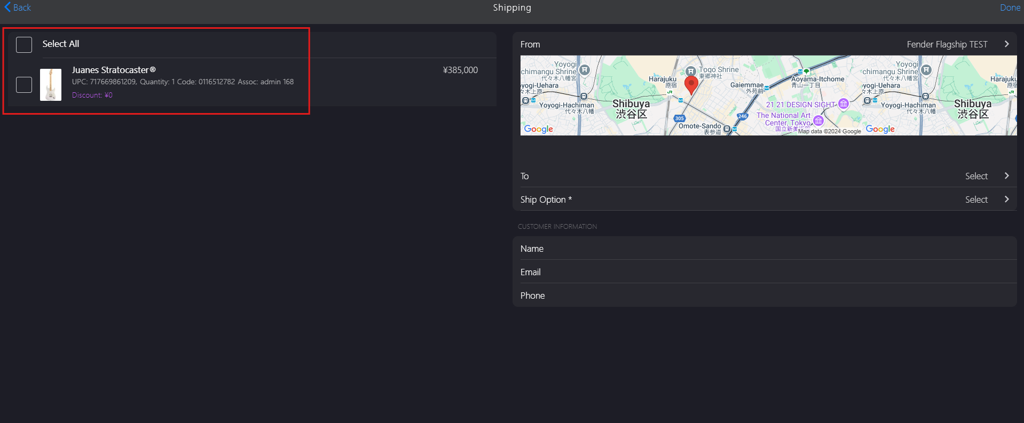
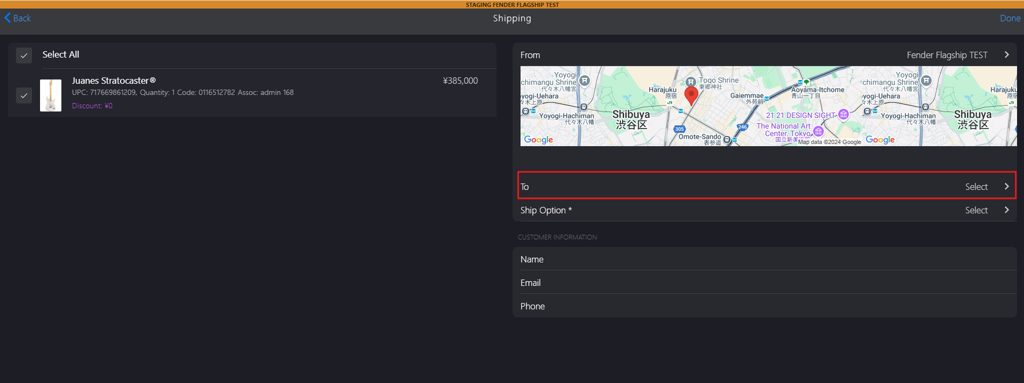
Click the checkbox to select the product for shipping.
-
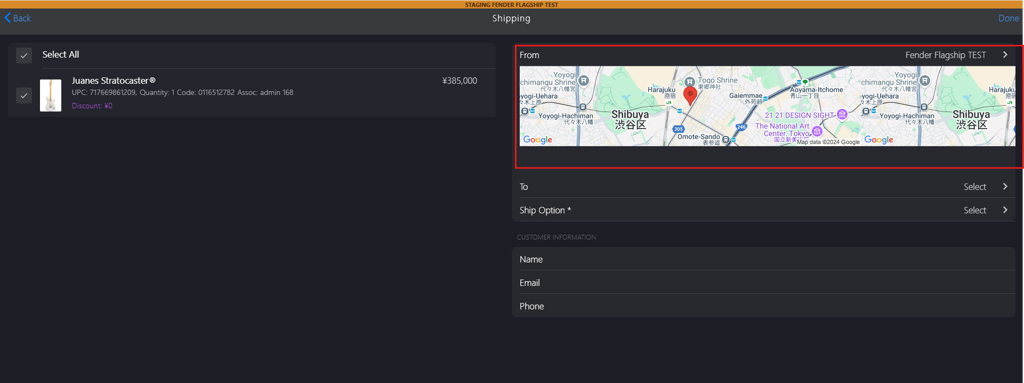
The system automatically selects the From address, which represents the store where the product was ordered.
-
Click To go to Add Shipping Details page.
-
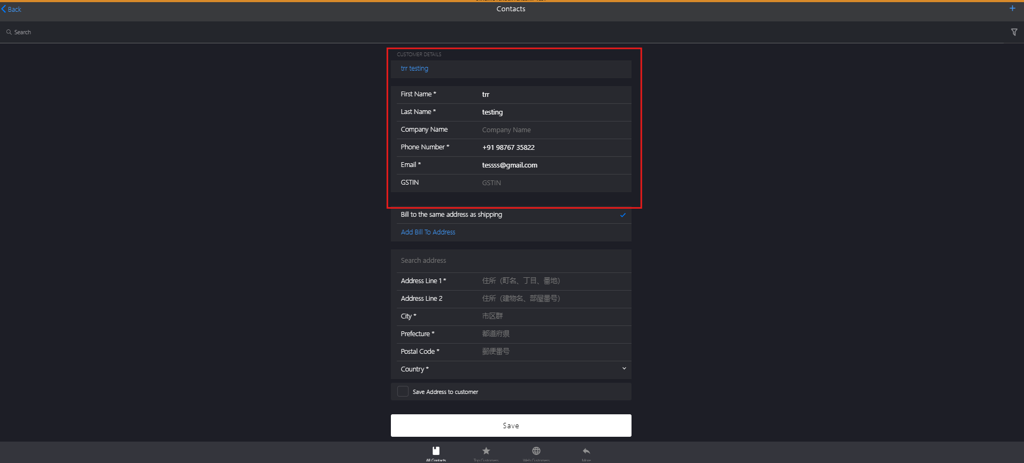
Click Add Customer in CUSTOMER DETAILS to import the customer details from Contacts and automatically fill in the following fields:
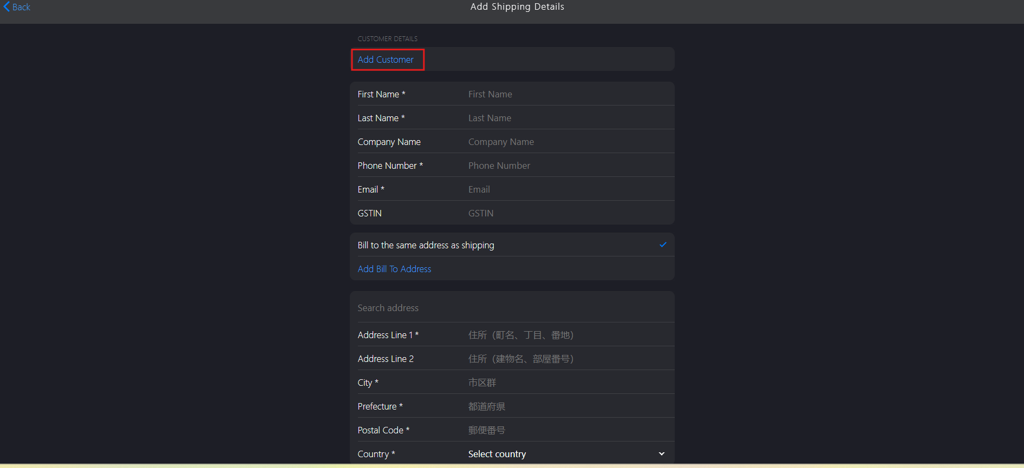
- First Name*: Enter the customer's first name.
- Last Name*: Enter the customer's last name.
- Company Name: If applicable, enter the name of the company associated with the customer.
- Phone Number*: Enter a valid phone number.
- Email*: Enter a valid email address.
- GSTIN: If applicable, enter the customer's GST Identification Number (GSTIN) for tax-related purposes.
Note:
- Fields marked with * are mandatory.
- If the phone number and email are not automatically updated when importing customer data from Contacts, manually enter them.
-
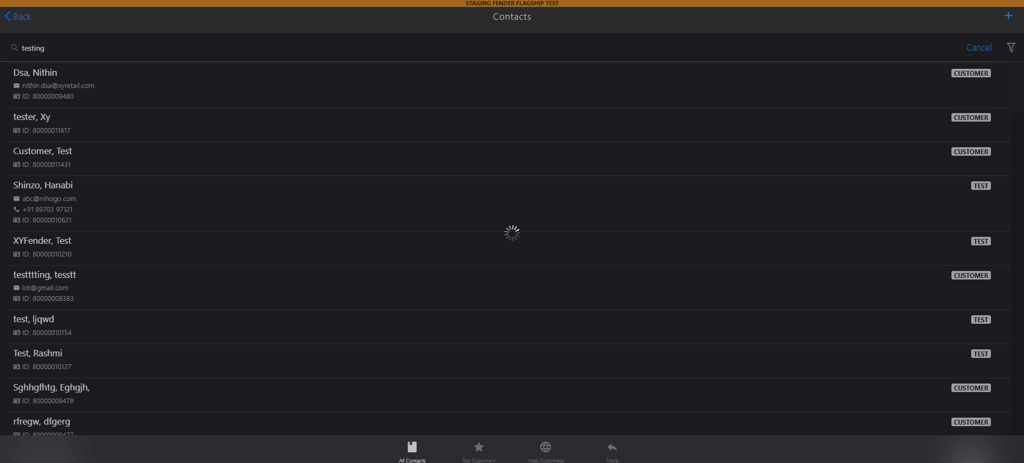
Search for the customer in the Contacts search box.
-
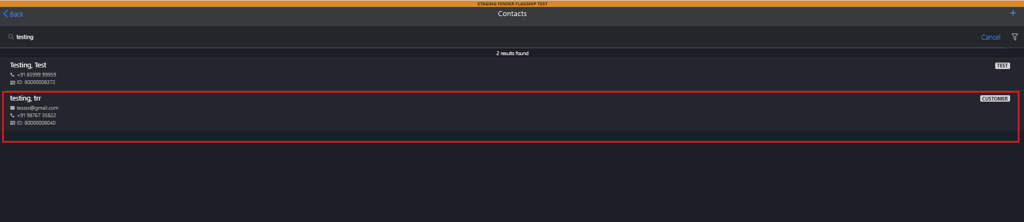
Click to select the customer from the search list and complete the customer details.
-
Enter the following Add Bill to Address fields to deliver the order to customer's specified location:
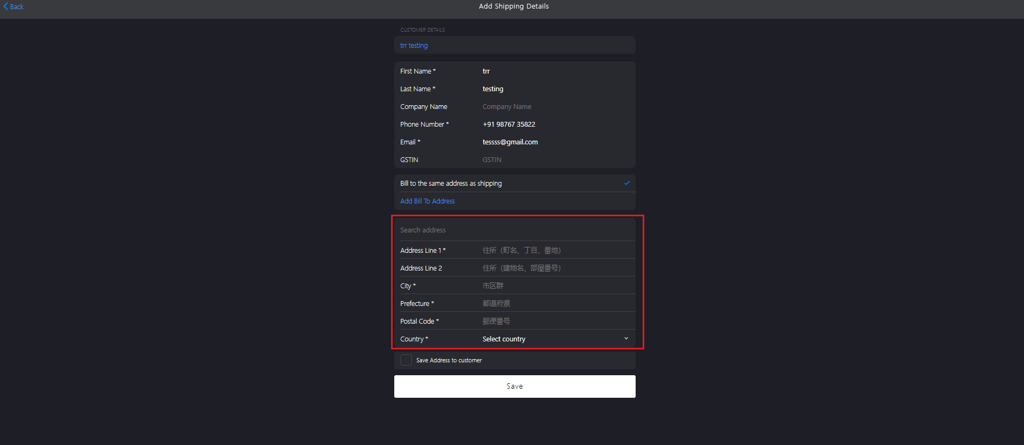
- Address Line 1*: Enter the street address, including block and building details.
- Address Line 2: If applicable, enter the building name and unit or room number.
- City*: Provide the city or ward name.
- Prefecture*: Select the relevant prefecture.
- Postal Code*: Enter the area's postal code.
- Country*: Select the country from the dropdown list.
Note:
- * Indicates the field is mandatory.
- If the customer is already saved, use Search address box to locate and select the saved address.
-
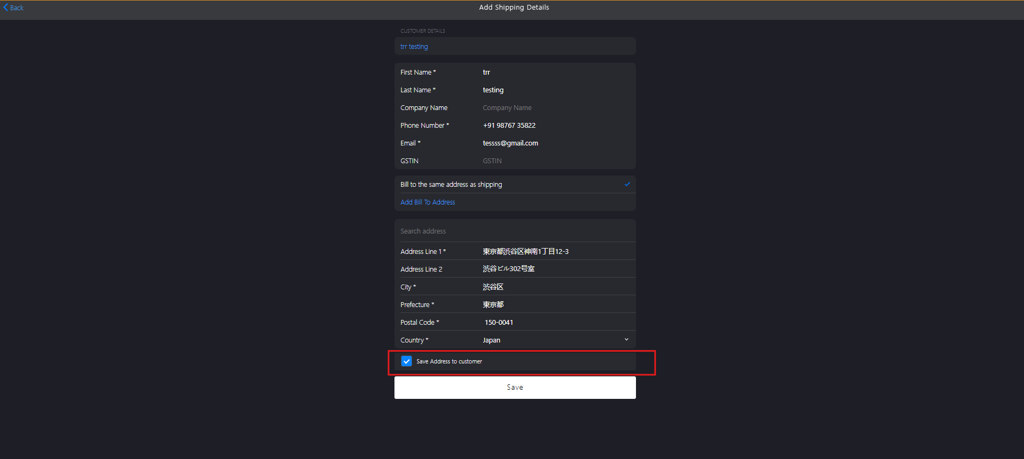
Click Save Address to customer checkbox to save the address to existing customer profile.
-
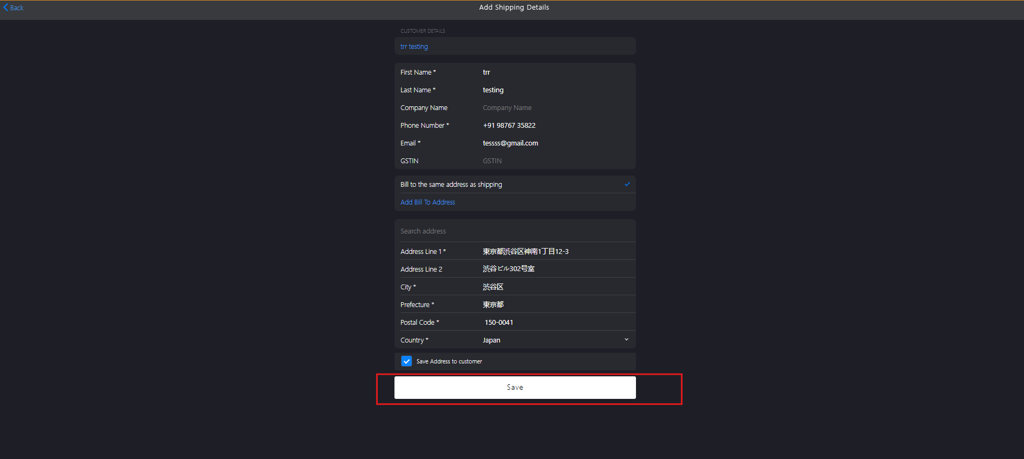
Click Save to add the To address.
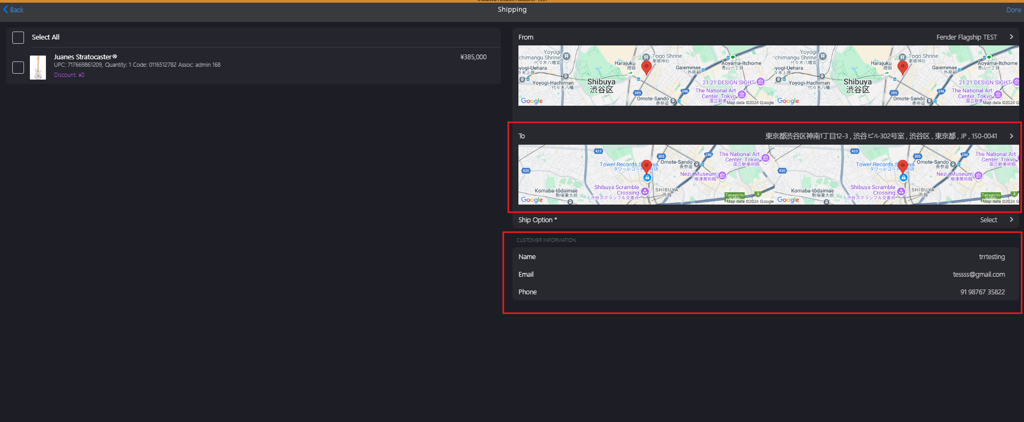
-
Click Ship Option* to select either Free Shipping or Chargeable Shipping (tax included).
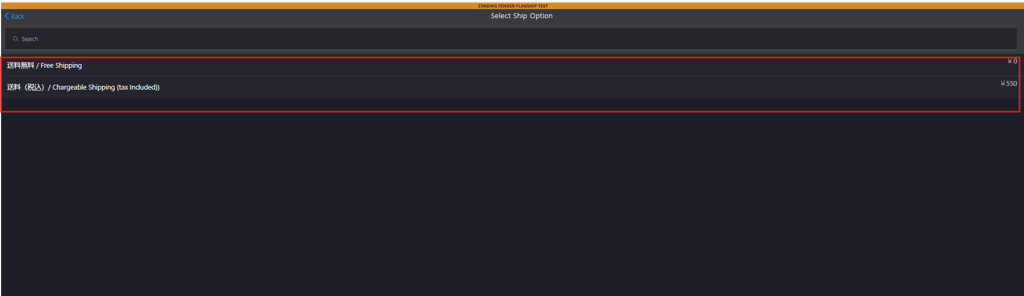
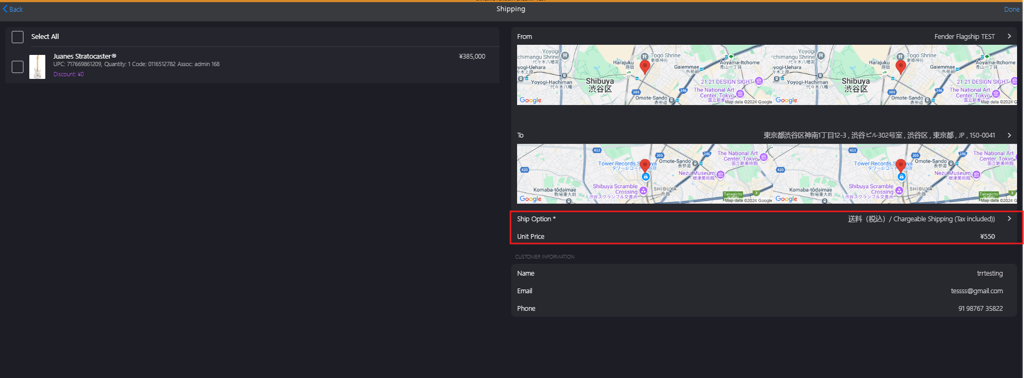
-
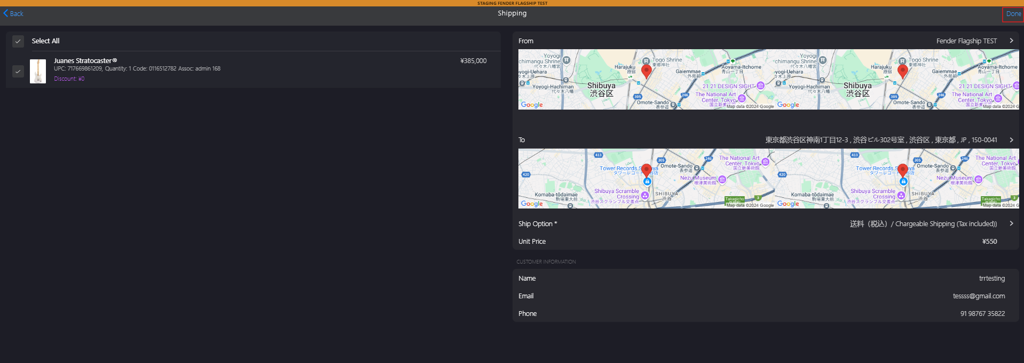
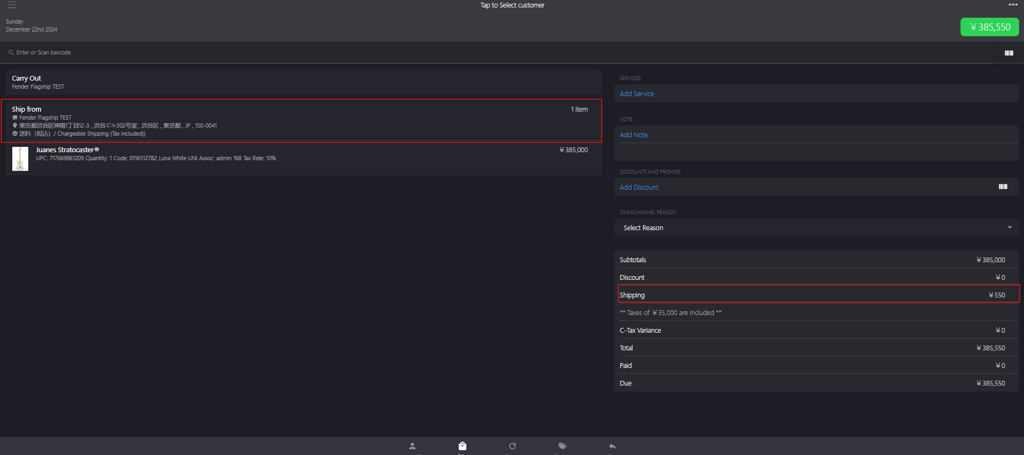
Click Done to return to the Sales Order page to complete the payment for the selected product.