Applying Fixed Discount
Introduction
This topic explains the procedure for applying a fixed discount to a sales order.
Steps to Apply Fixed Discount
-
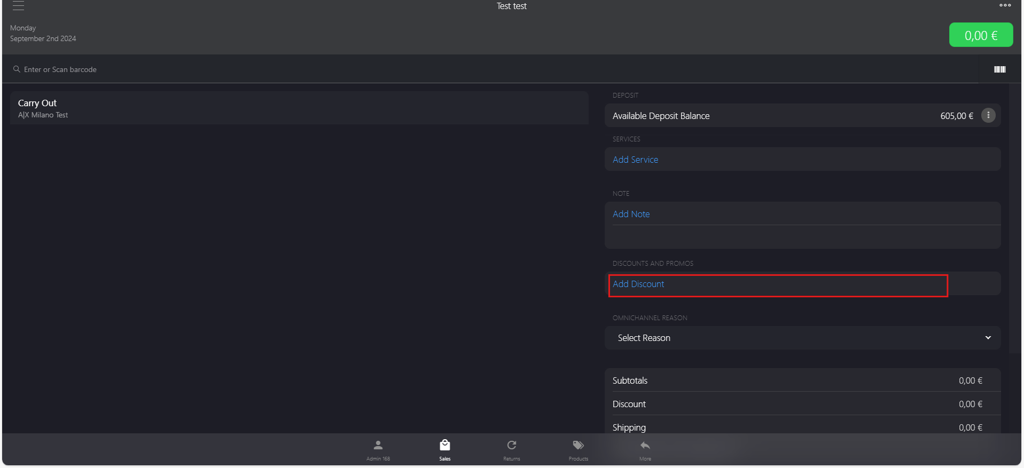
In the DISCOUNTS AND PROMOS section, click Add Discount.
-
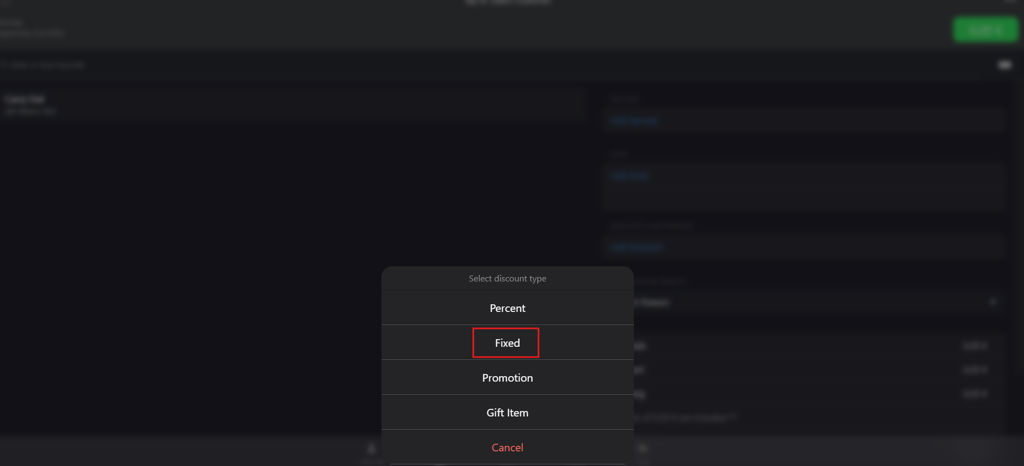
Select Fixed from Select discount type options.
-
Update the options on the Fixed Discount page.
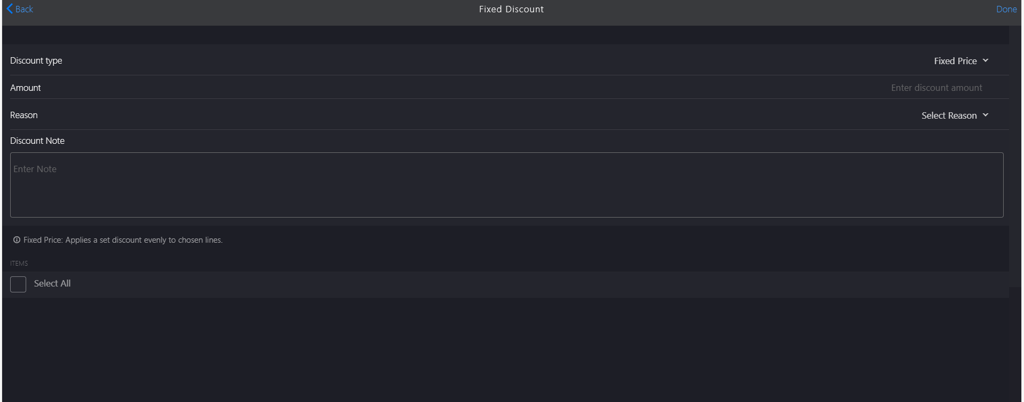
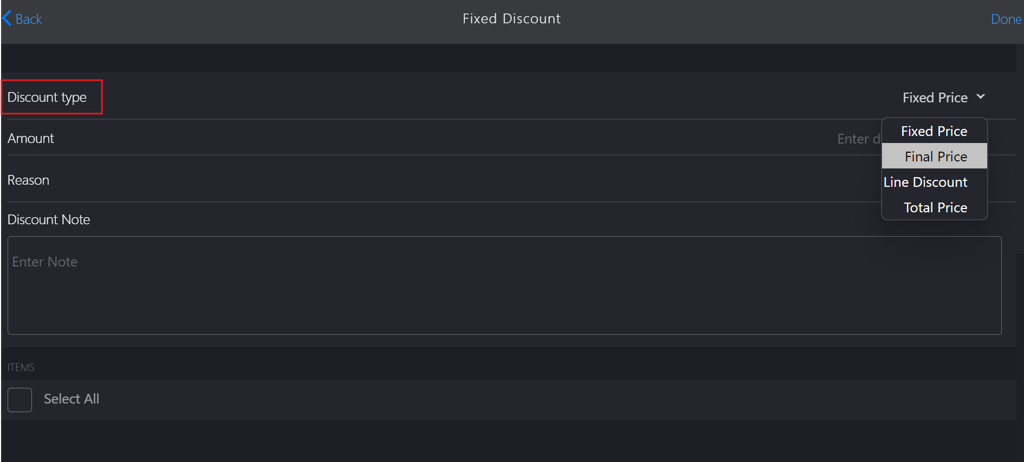
a. Discount type: Select the relevant discount type from the dropdown menu.
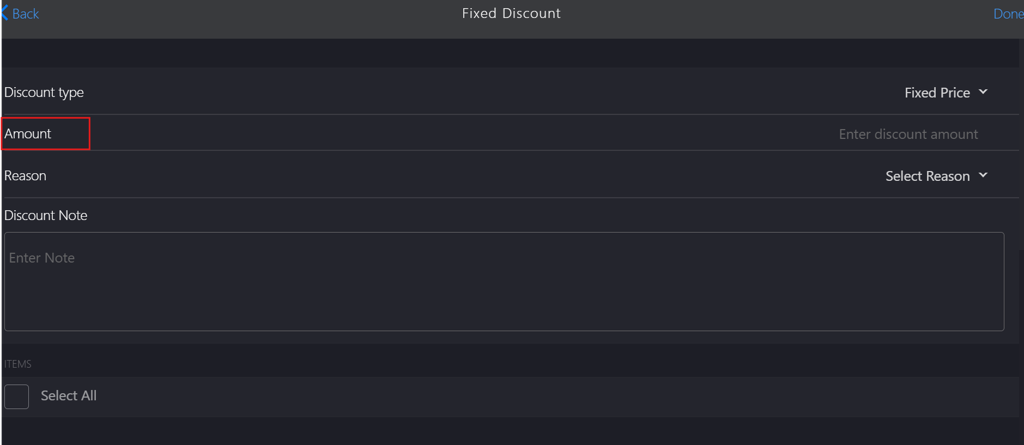
 b. Amount: Enter the discount amount in the field.
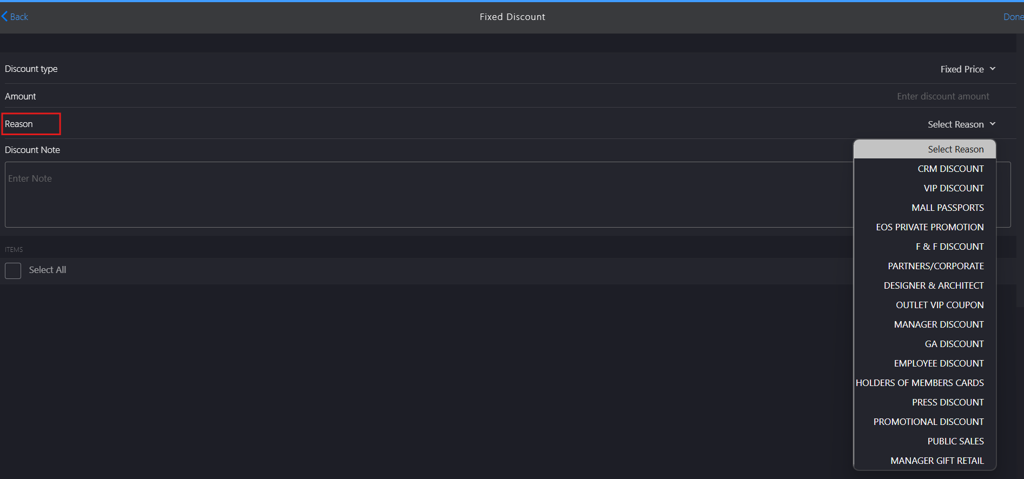
 c. Reason: Select a relevant reason from the Select Reason dropdown menu.
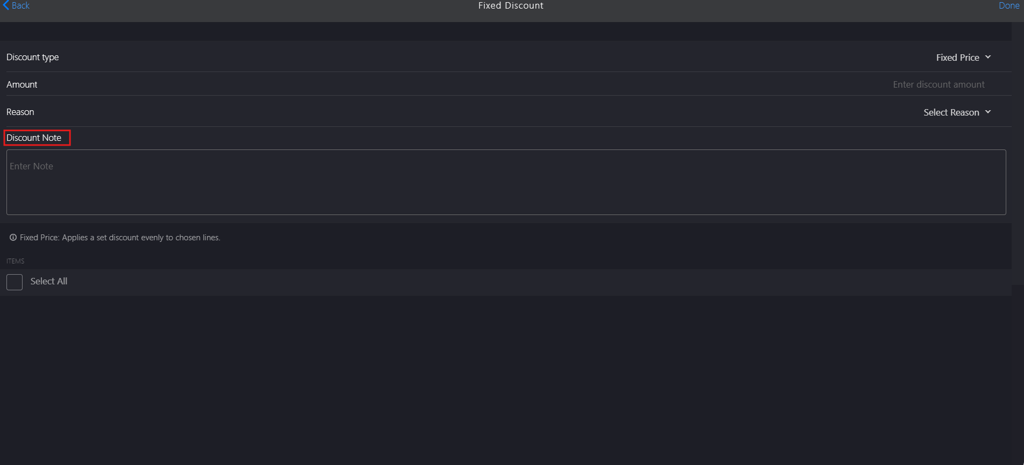
 d. Discount Note: Add a note in the corresponding field.
 e. Select the ITEMS checkbox to which discount is applied.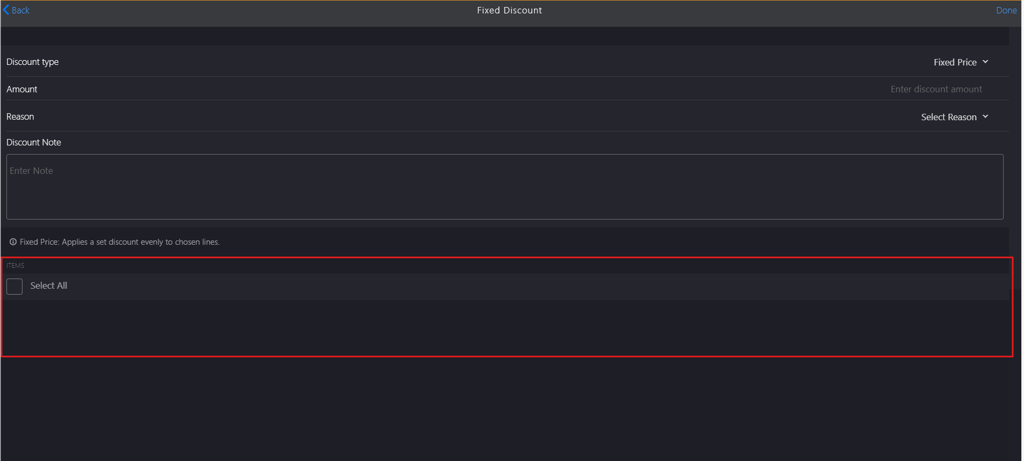
-
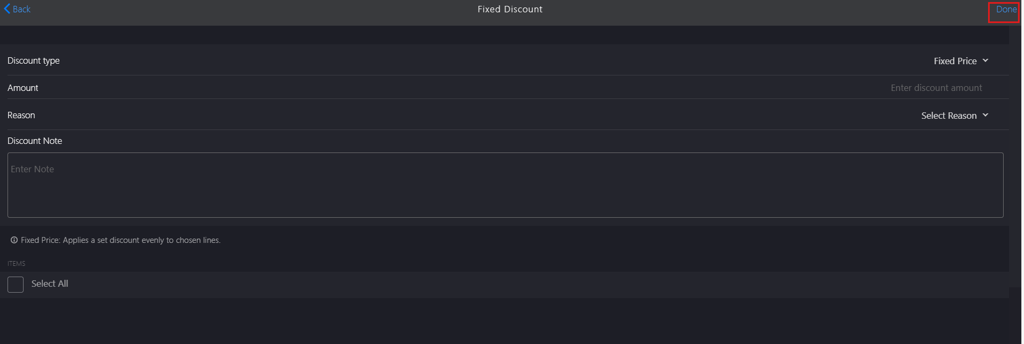
Click Done to apply the discount.
-
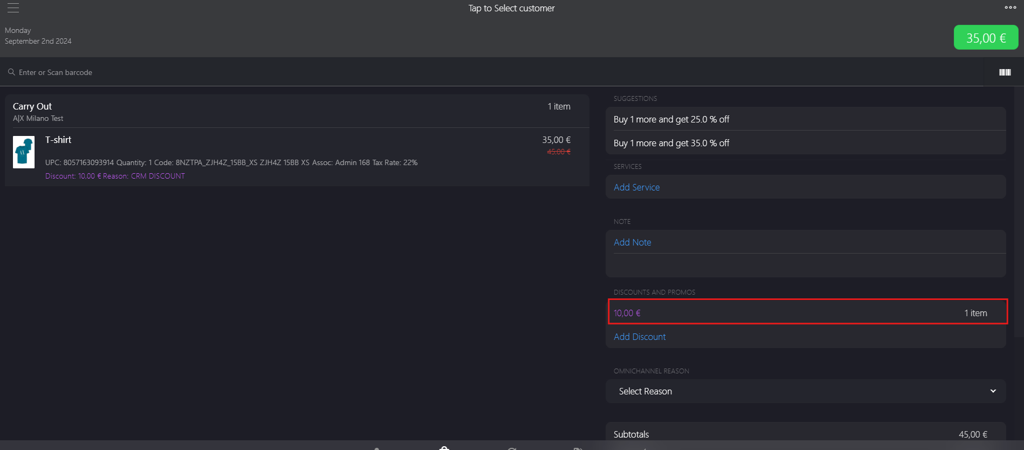
Click the fixed discount amount displayed on the Tap to Select customer page.
-
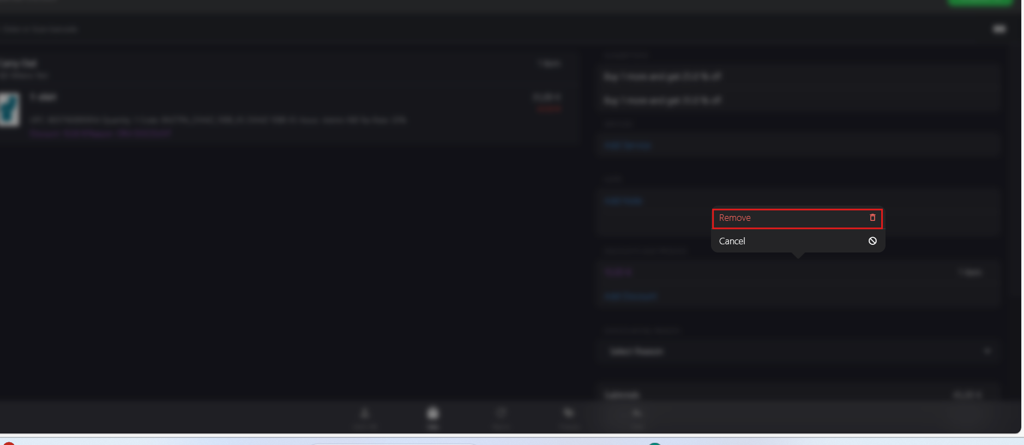
Click Remove to remove the discount.