Exchanging an Order
Introduction
This topic explains the procedure for initiating an exchange process if a customer desires to exchange an order.
Steps to Exchange Order
-
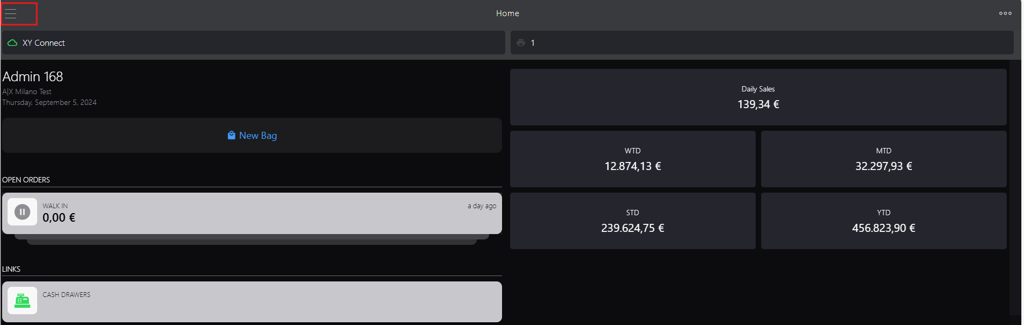
Click the burger menu.
-
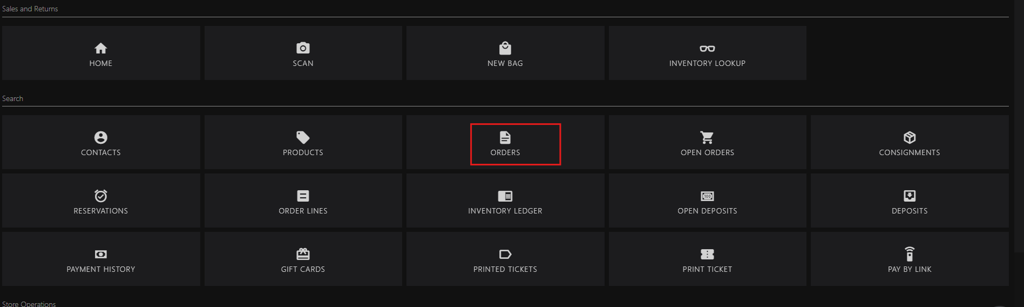
Click ORDERS.
-
You can search the order id using following options:
-
For an order with reference, initiate new search in the search box:

- Enter the following keywords:
- name
- category
- upc
- id
- Scan the order barcode
- Enter the following keywords:
-
For an order without reference, use the integrated filters at the upper right corner.

-
-
Click the order, or alternatively, swipe the order to the left to access Fast Returns.


-
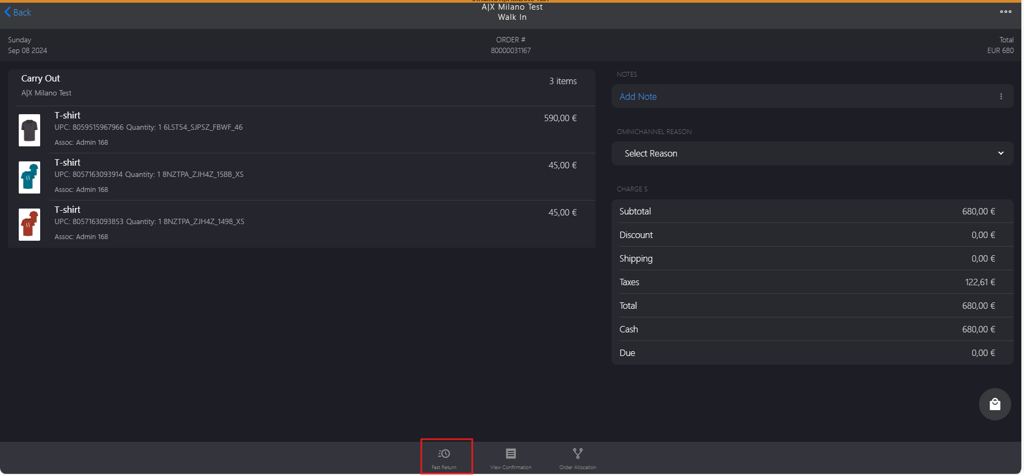
Click Fast Return on the bottom bar.
-
Click Sales on the bottom bar of the return cart page.
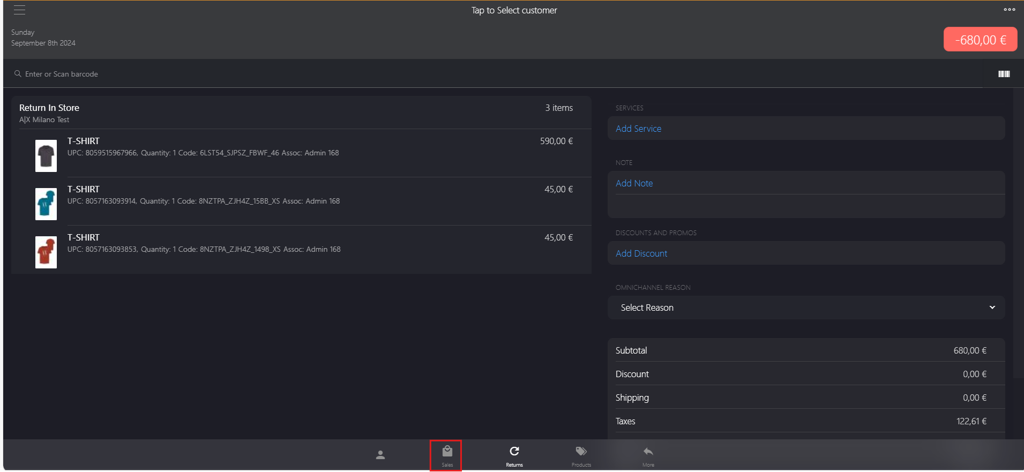
-
Go to Enter or Scan barcode box to add the products.
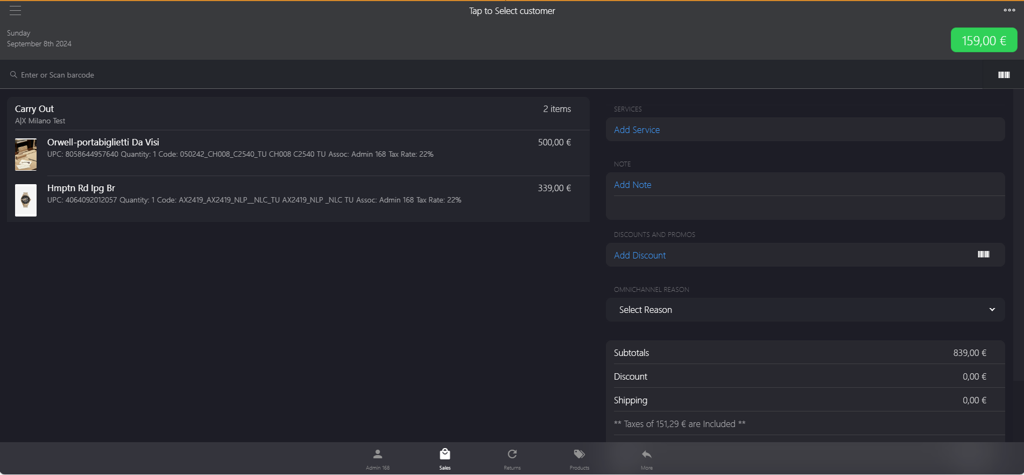
- If you have a barcode scanner, scan the product’s barcode. The code will automatically appear in the box.
- If a scanner is unavailable, manually enter the product barcode number into the box.
- If you cannot find the item, go to the meatballs menu and select + Add Missing Item to save the item to Products.
-
Click the green button in the upper right corner.
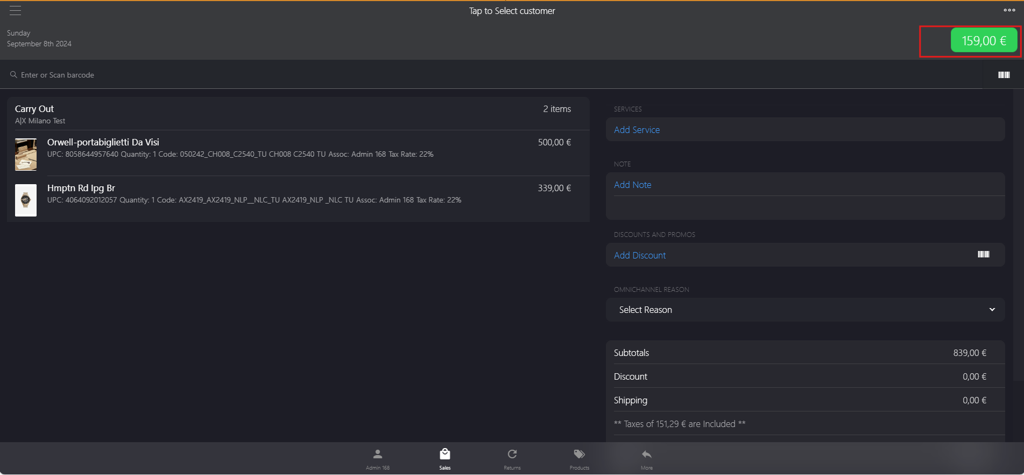
-
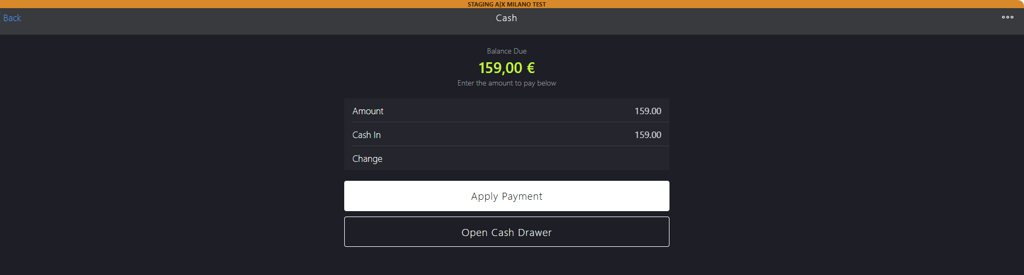
Select the preferred payment options. Note: CASH option has been selected in this scenario.
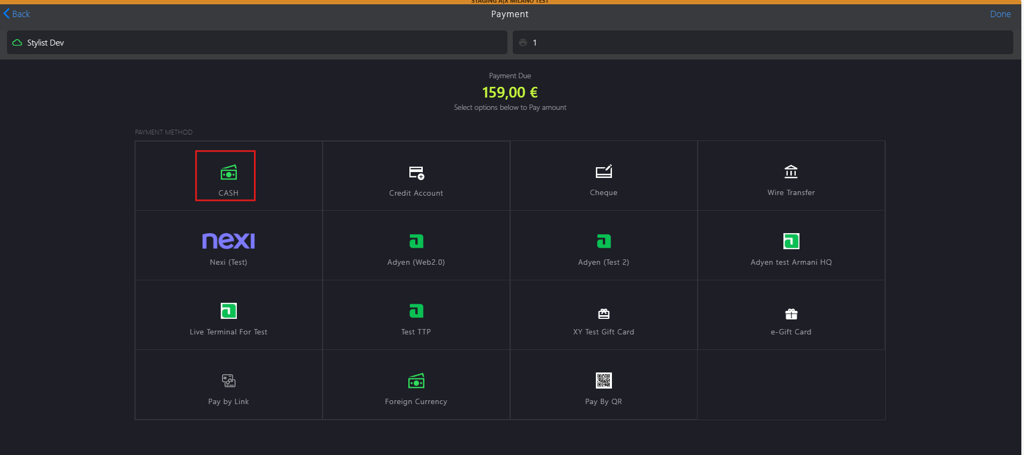
-
Click Apply Payment.
-
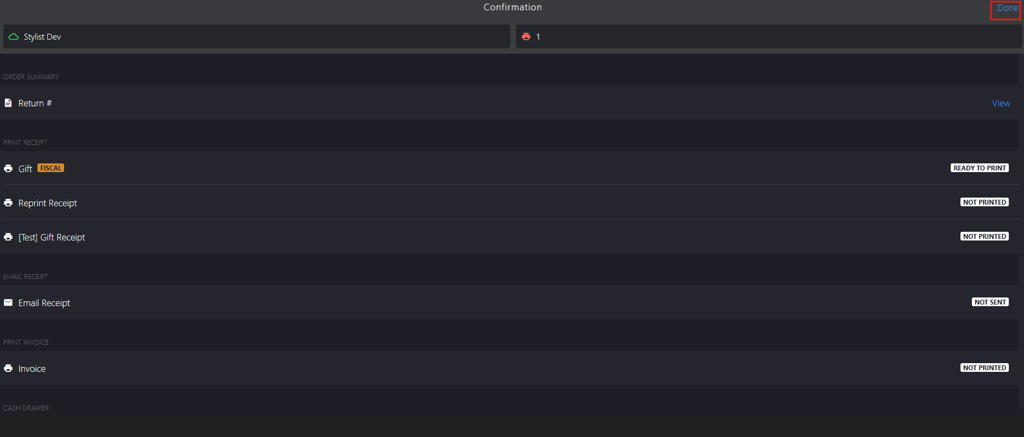
Click Done to complete the sale.