Creating a Reservation and Collecting a Deposit
Introduction
This topic explains the procedure for creating a reservation for an item and adding a deposit as requested by the retailer when a customer desires to preorder an item from the store.
Steps to Create a Reservation Deposit
-
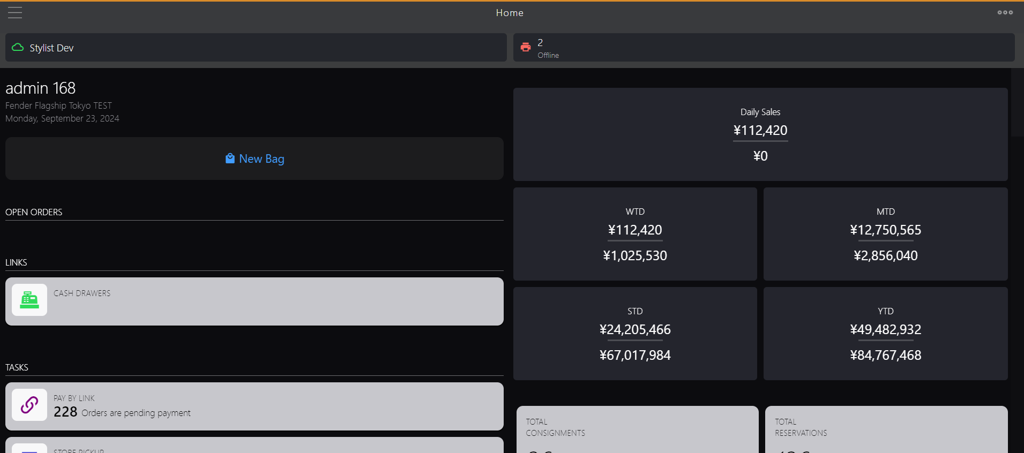
Click the burger menu.
-
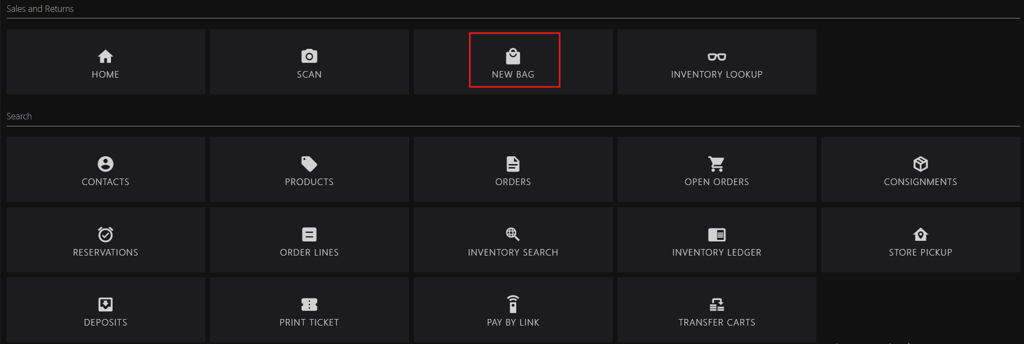
Click New Bag.
-
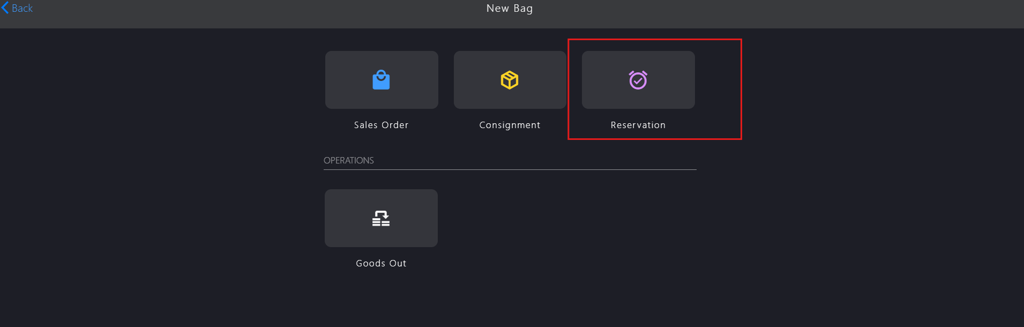
Click Reservation.
-
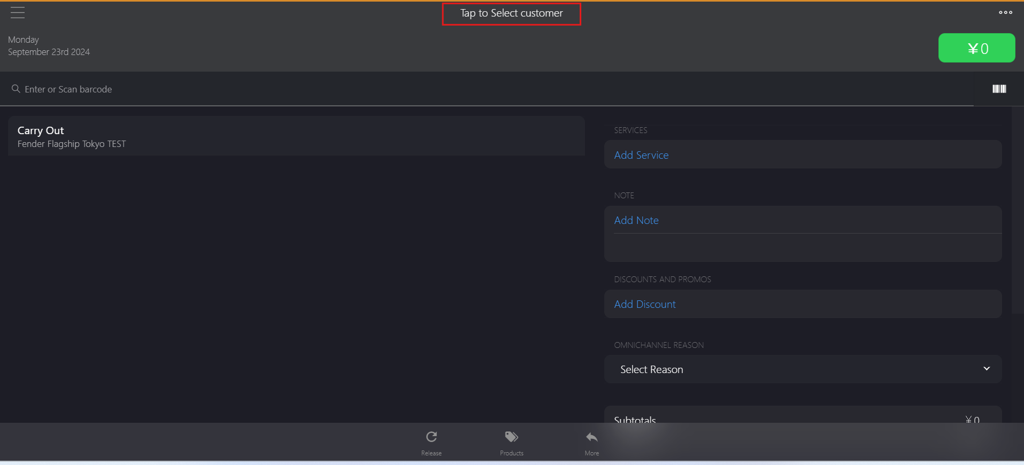
Click Tap to Select customer to add the customer.
-
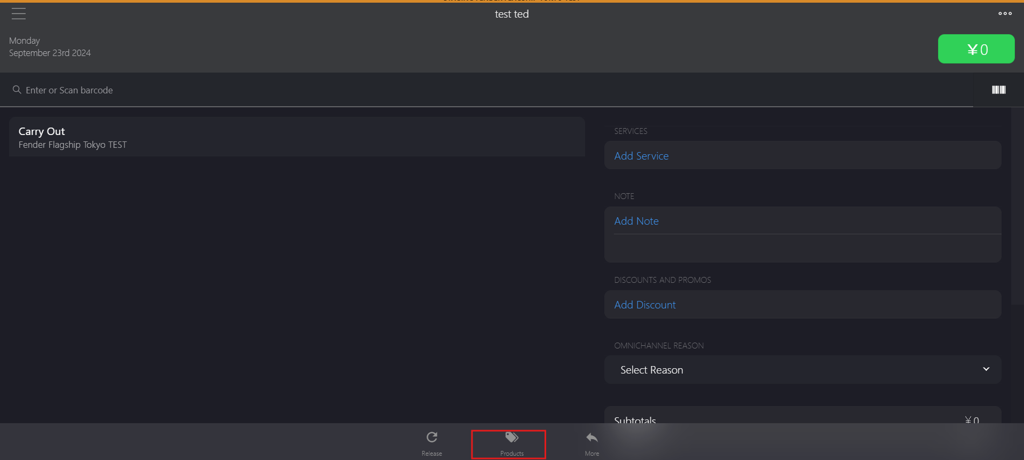
Click Products to select the item.
-
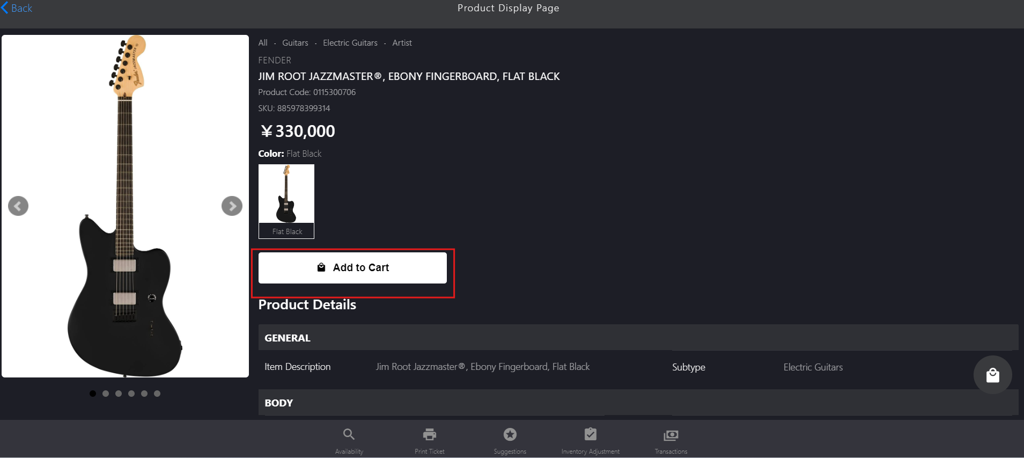
Click Add to Cart to reserve the item.
-
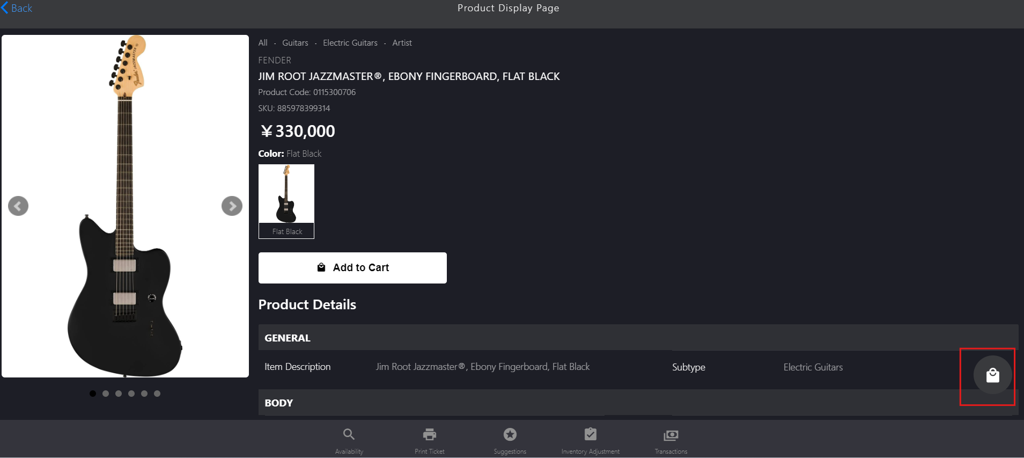
Click the bag icon to navigate back to the reservation page.
-
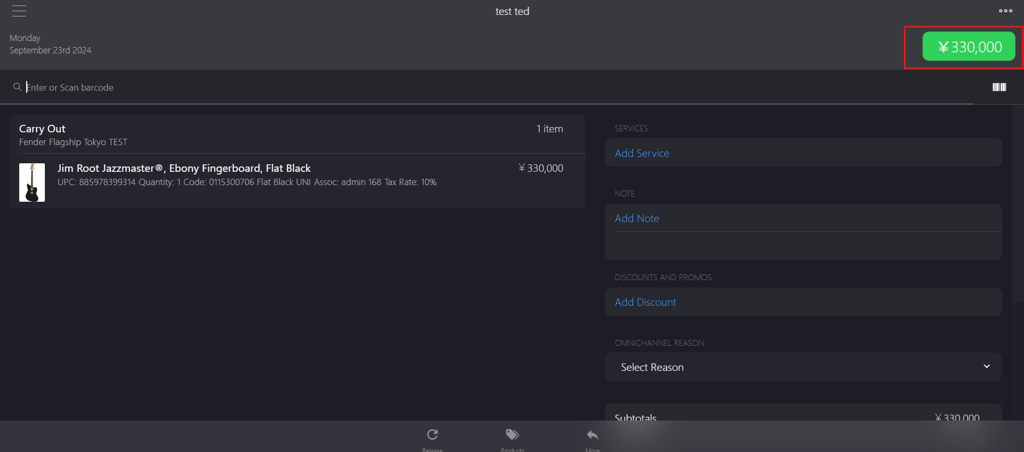
Click the green button in the upper-right corner to add the deposit percentage.
-
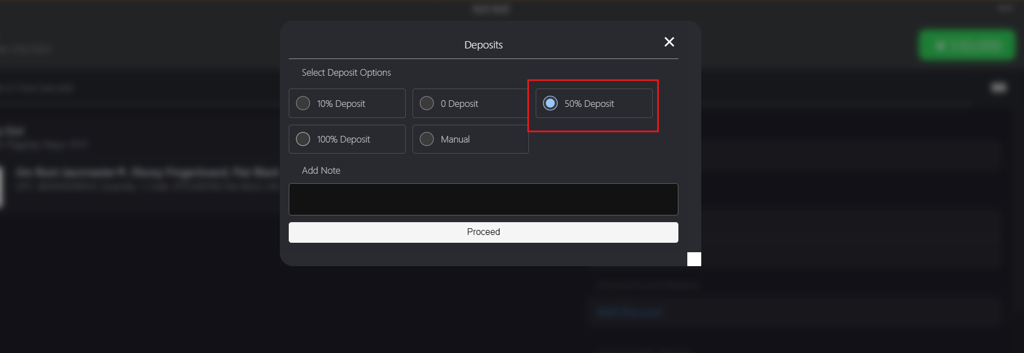
Select the deposit percentage from the Deposits dialog box.
-
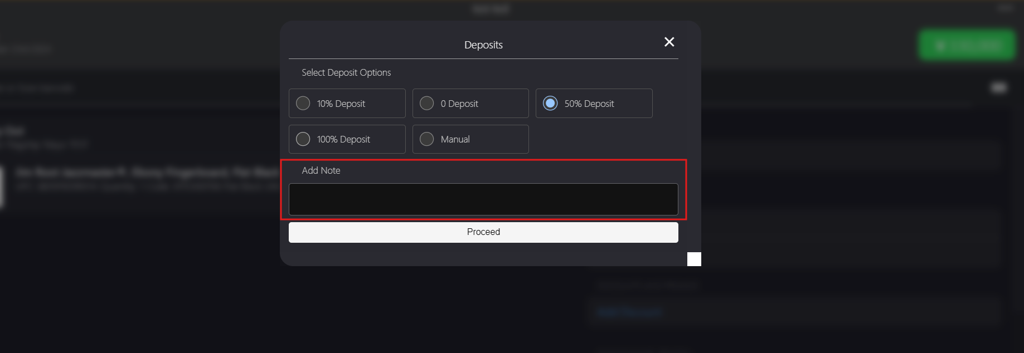
Enter the note in Add Note field (optional).
-
Click Proceed in the dialog box to apply the deposit percentage.

-
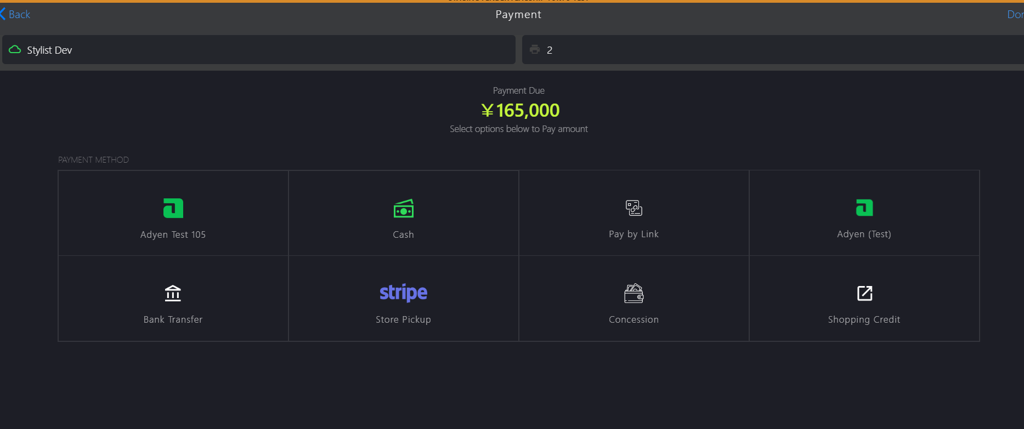
On the Payment page, select the payment method.
-
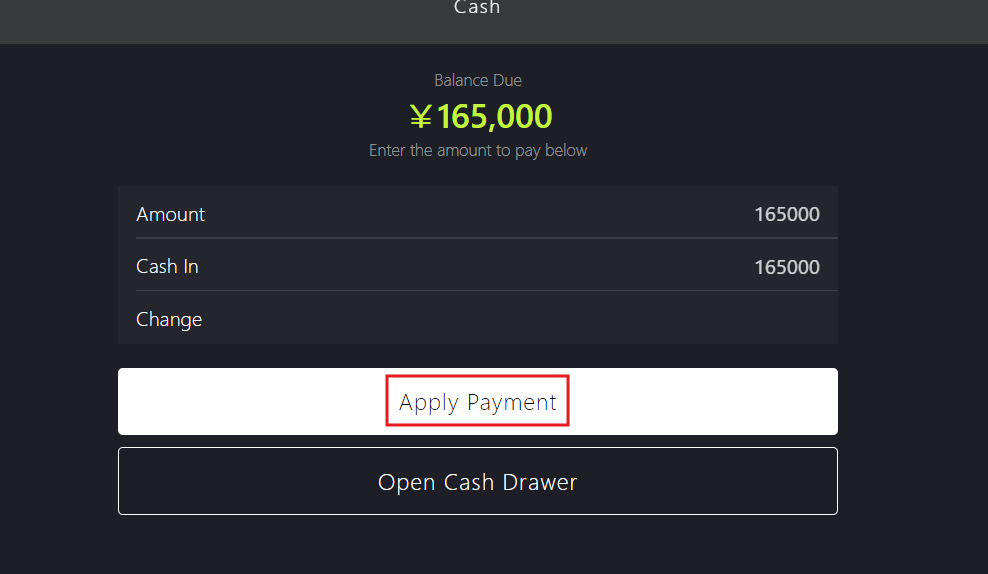
On the Cash page, click Apply Payment.
-
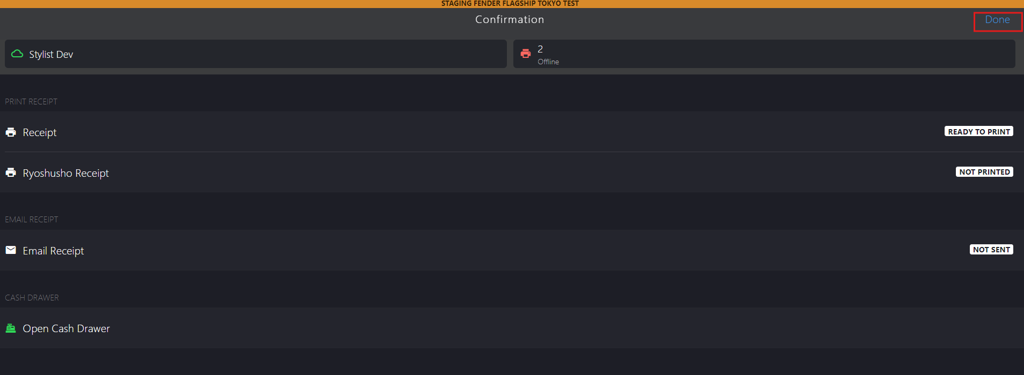
Click Done to finalize the reservation deposit for the requested item.