Applying Deposit for a reserved Item and Completing the Sale
Introduction
This topic explains the procedure for applying deposits to the reserved item to purchase a preordered item.
Steps to Apply Deposit for a Reserved Item and Completing the Sale
-
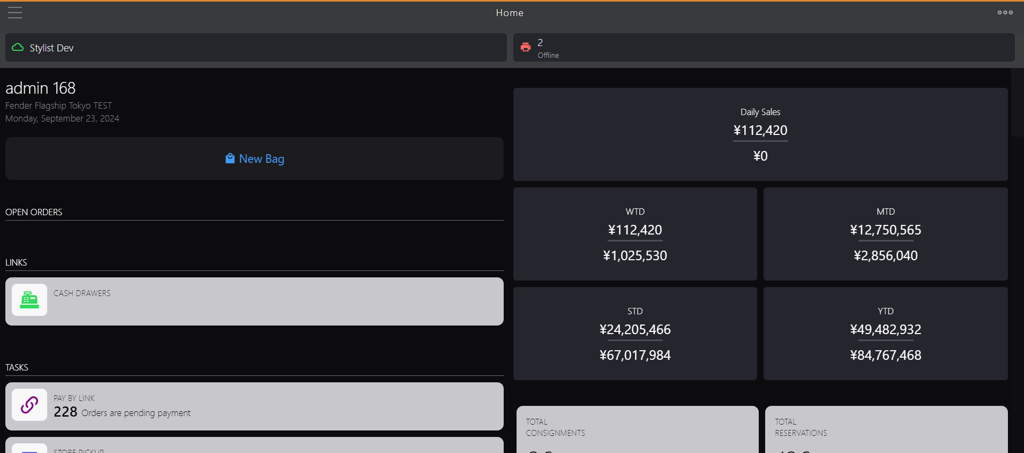
Click the burger menu.
-
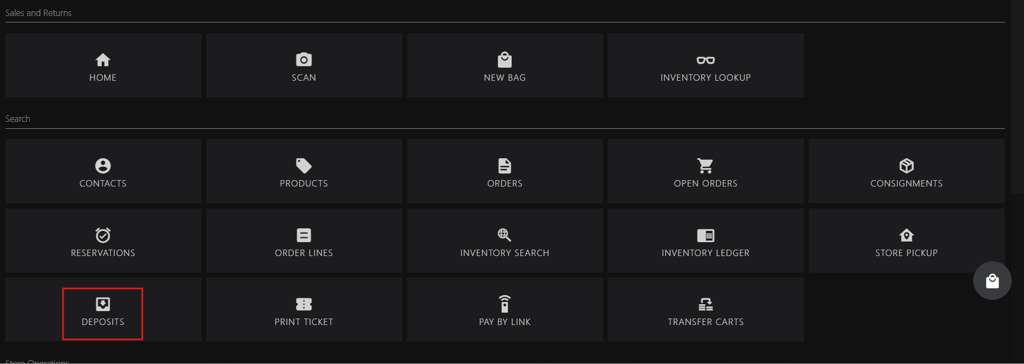
Click DEPOSITS.
-
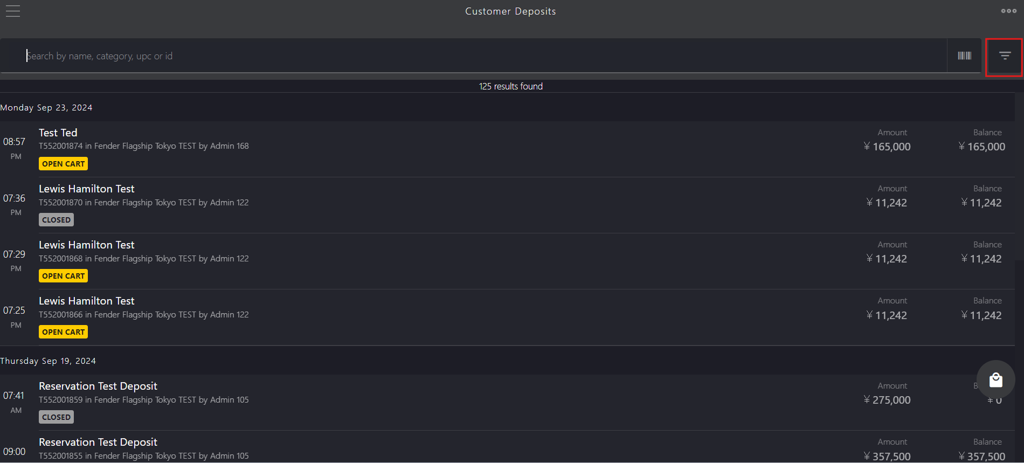
Search for the order number in the Customer Deposits using any of the following method:
-
Enter the criteria in the search box, such as:
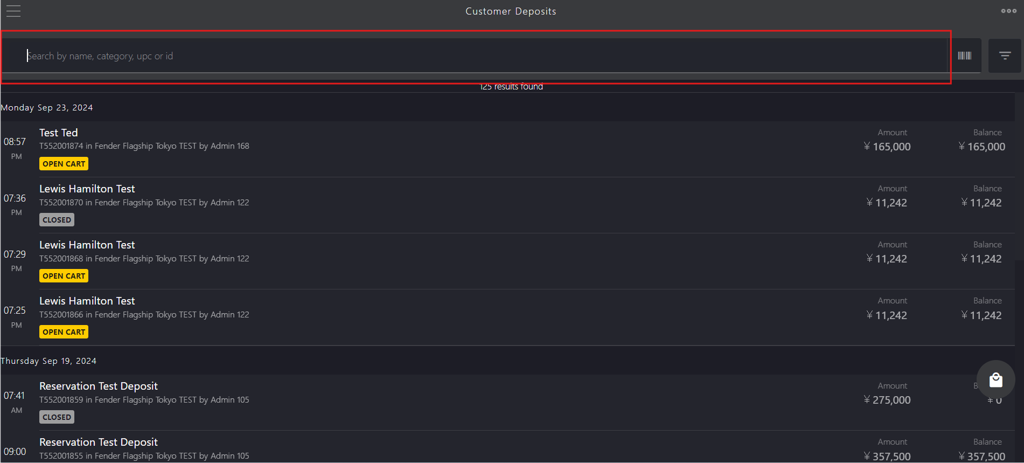
- name
- category
- upc
- id
-
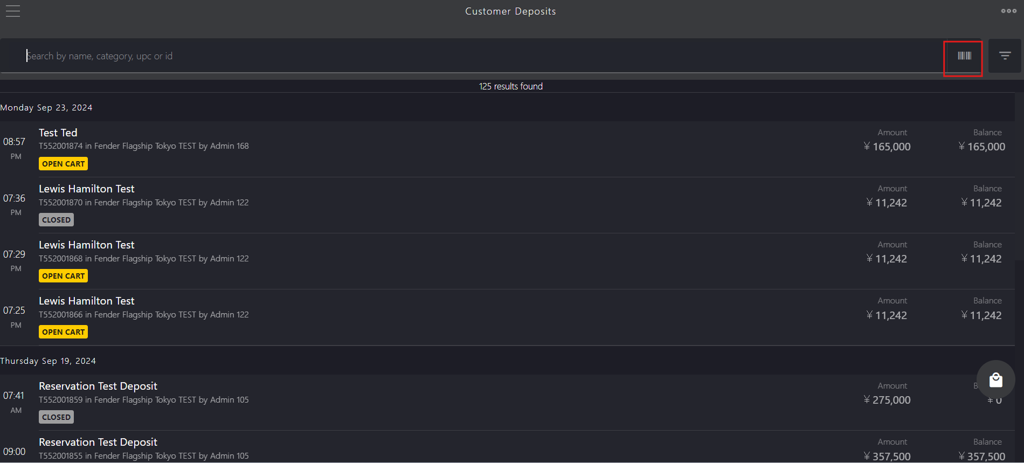
Scan the item barcode.
-
Apply the filters based on the category.
-
-
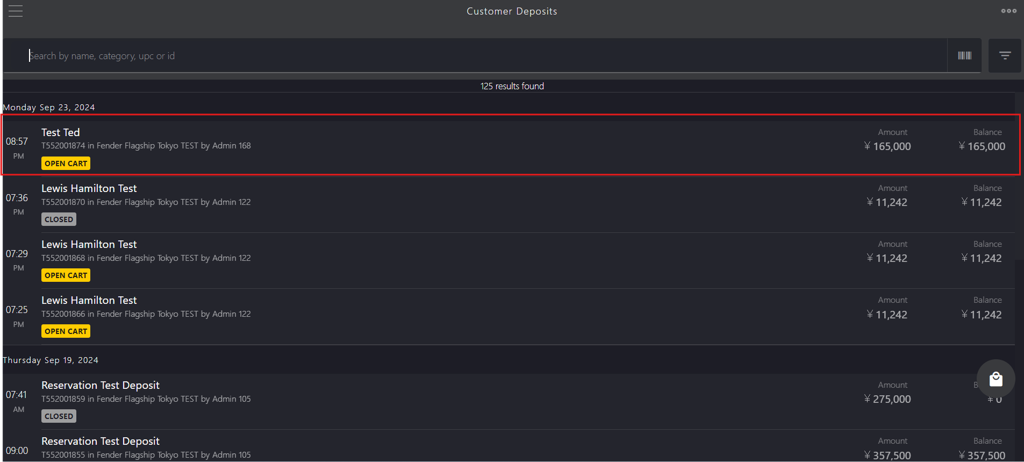
Select the order id from the list.
-
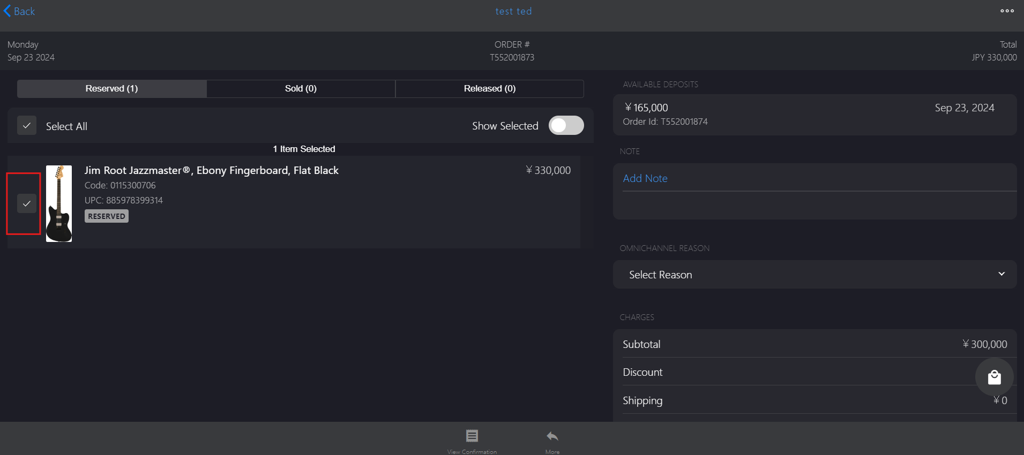
Select the item using the checkbox.
-
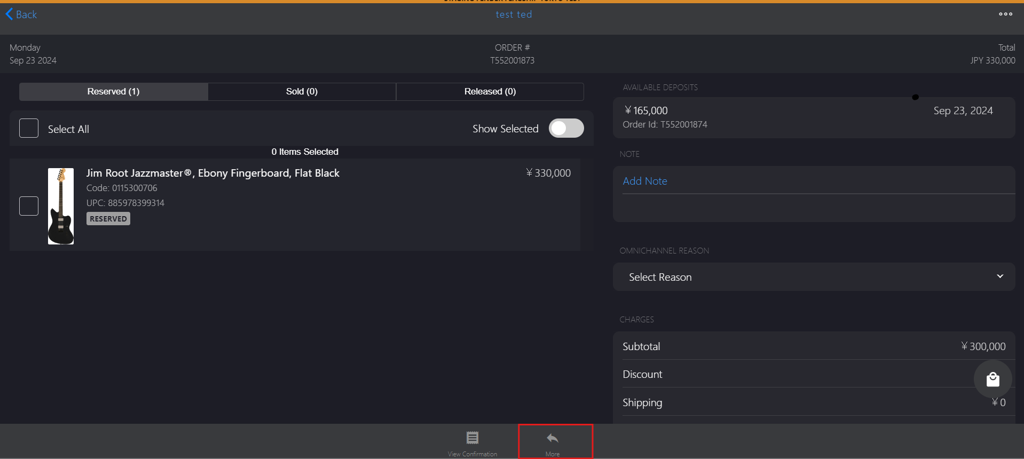
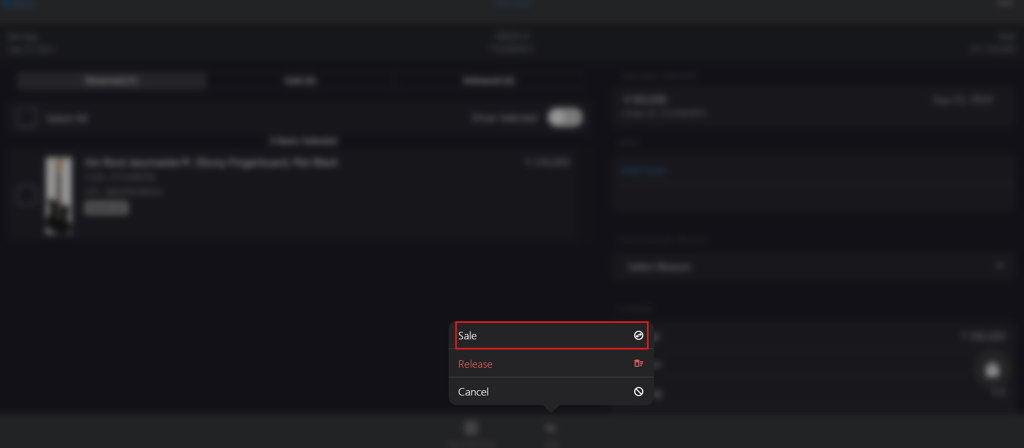
Click More on the bottom bar.
-
Select Sale from the pop-up menu.
-
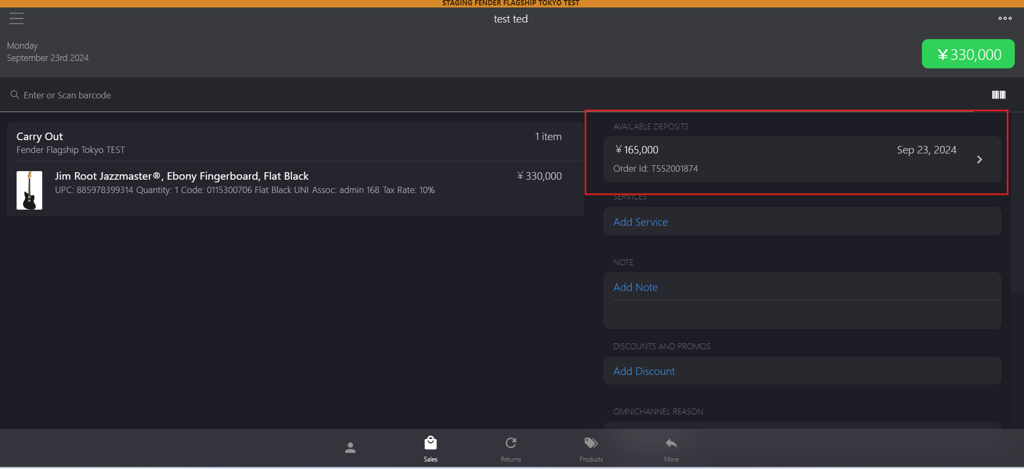
Click Available Deposits.
-
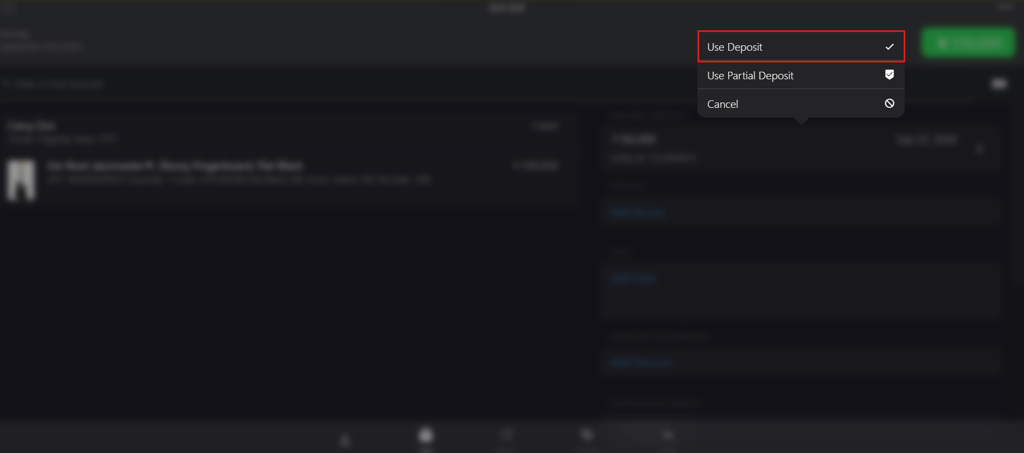
Select Use Deposit from the pop-up menu.
-
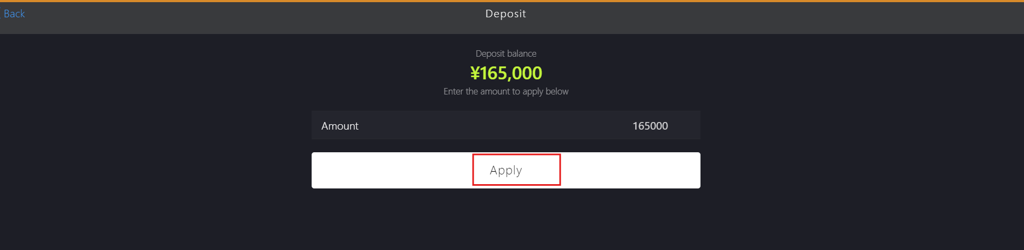
Click Apply.
-
Click the green button on the upper-right corner.
Note: After applying a 50% deposit, the customer will need to pay the adjusted balance.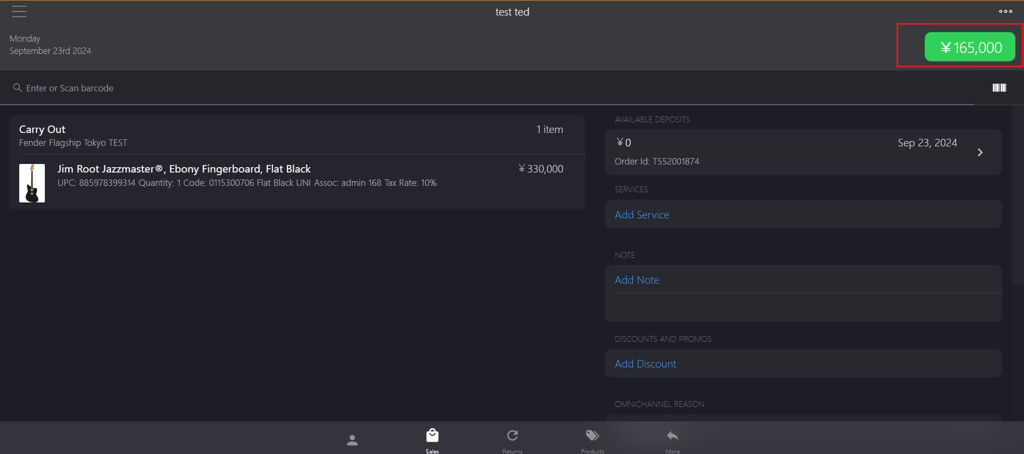
-
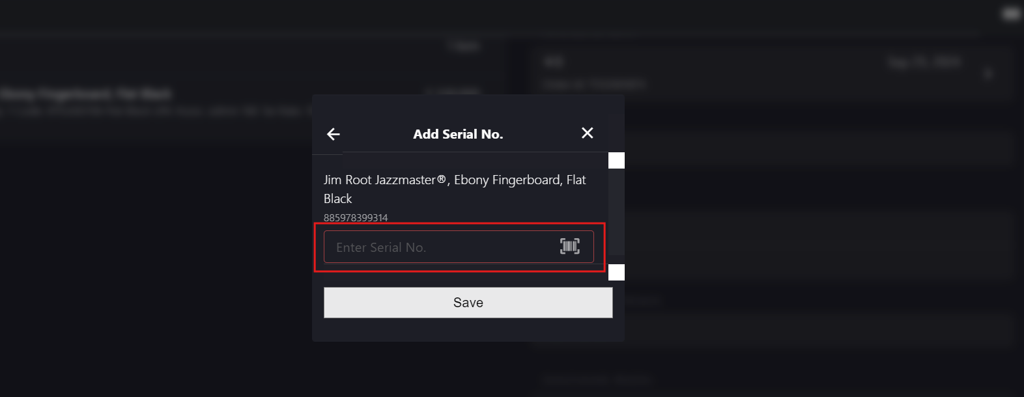
In the Add Serial No. dialog box, enter the item serial number in the Enter Serial No field.
-
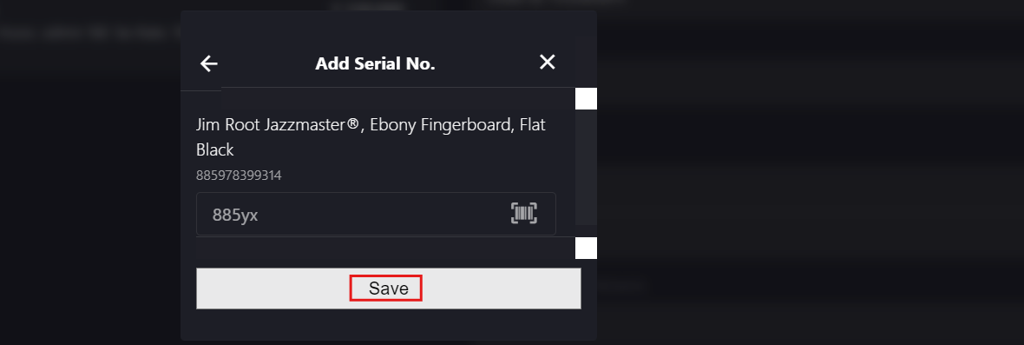
Click Save in Add Serial No. dialog box.
-
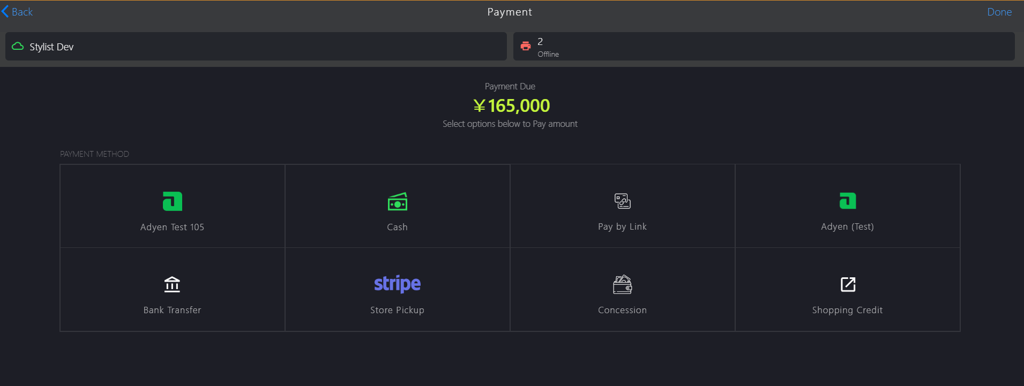
Select the appropriate payment method.
-
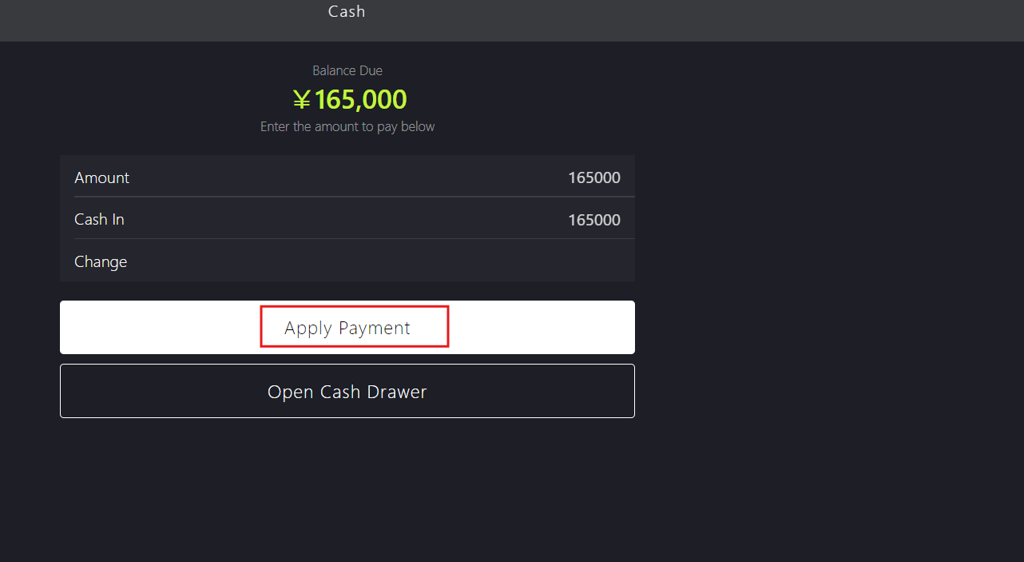
Click Apply Payment.
-
Click Done to close the sale.