OMS Dashboard
Introduction
The OMS dashboard serves as the central workspace for monitoring and managing the end-to-end lifecycle of customer orders and returns. It provides operations and customer service teams with a real-time view of orders, item-level details, returns, and key processing states. This visibility enables quick identification of issues, supports timely corrective actions, and ensures efficient order fulfilment.
OMS Dashboard – UI Reference Table
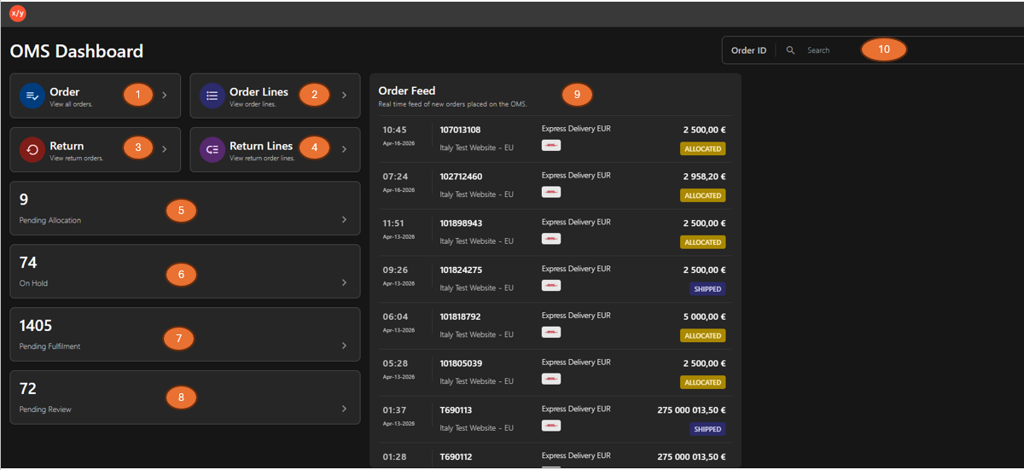
The following table describes the features that support common follow-up tasks.
| Callout ID | Feature | Description |
|---|---|---|
| 1 | Order | Click Order to view the master list of all orders and their status. |
| 2 | Order Lines | Click Order Lines to view individual products within an order (for example, verify item-level shipment status). |
| 3 | Return | Click Return to view the master list of all return requests and track refund status. |
| 4 | Return Lines | Click Return Lines to view items returned from an order. |
| 5 | Pending Allocation | Click Pending Allocation to view orders waiting for stock assignment before processing. |
| 6 | On Hold | Click On Hold to identify orders that are paused due to issues such as payment failure or missing information. |
| 7 | Pending Fulfilment | Click Pending Fulfilment to view orders ready for packing and shipment. |
| 8 | Pending Review | Click Pending Review to identify orders requiring manual approval (for example, address validation). |
| 9 | Order Feed | Click Order Feed to view real-time order updates and current status (for example, Allocated, Shipped). |
| 10 | Order ID search box | Enter an Order ID in the search box to locate and view specific order details. |