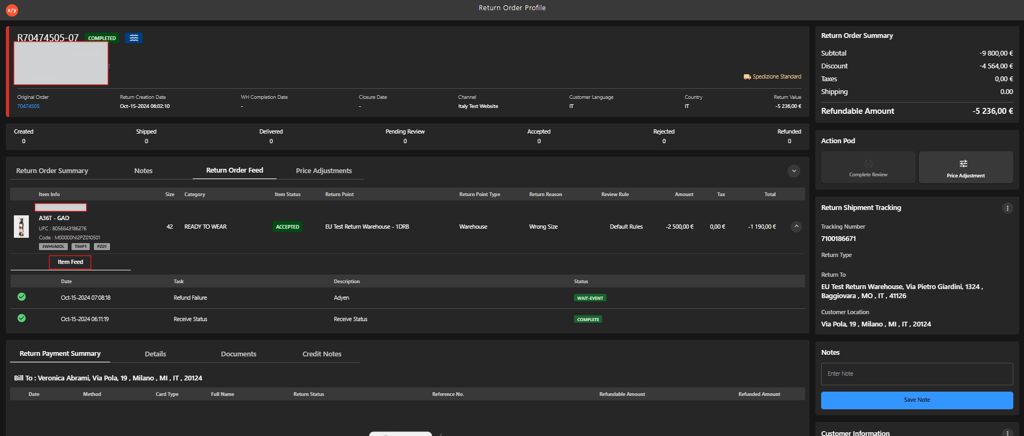
Accessing Return Item Feed From Return Lines
Introduction
This procedure explains how to view the return item flow from the Return Lines tab using search and filter options. The Return Lines dashboard enables users to locate specific return orders and review item-level status and details efficiently.
Steps to Access Return Item Feed
-
Click Return Line.
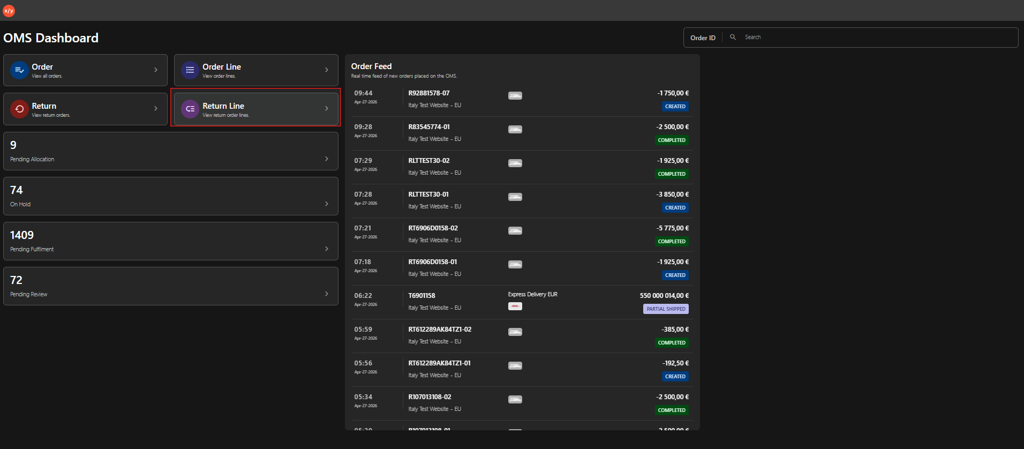
-
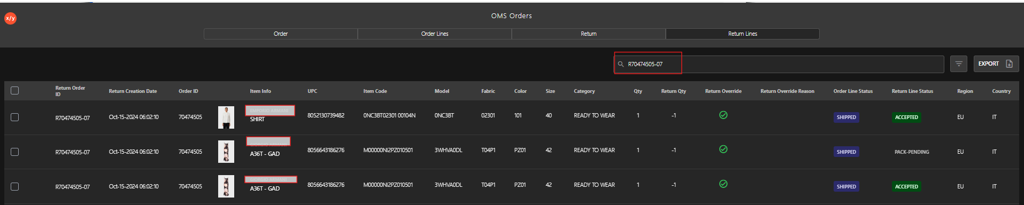
Select an option in the Return Line tab.
a. Search Boxi. Enter the Return Order ID in the Search by Return Order ID field.

ii. Press Enter to display the order details.
 b. Filter
i. Click the Filter icon.
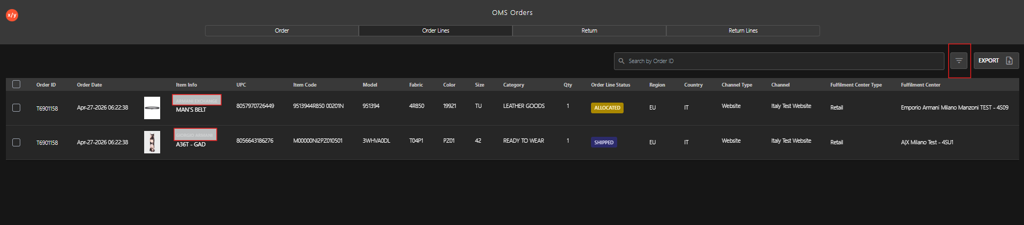
ii. Select one of the following Filter category:
- Order ID
- Customer Email
- Customer First Name
- Customer Last Name
- Customer Phone
- Tracking Number
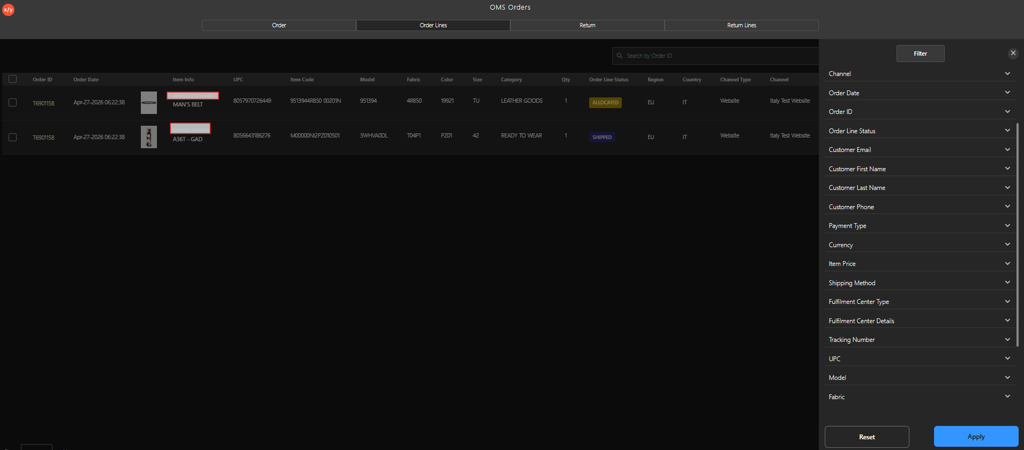
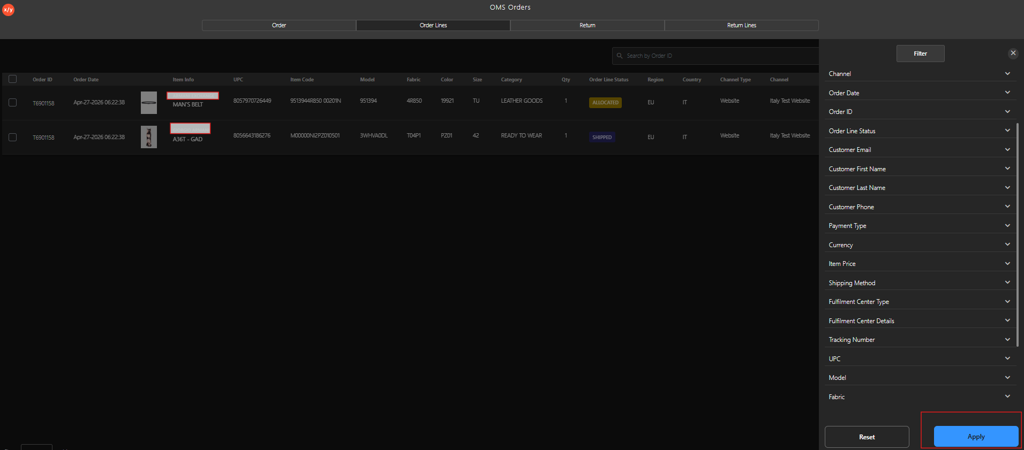
iii. Click Apply to view the filtered results.
-
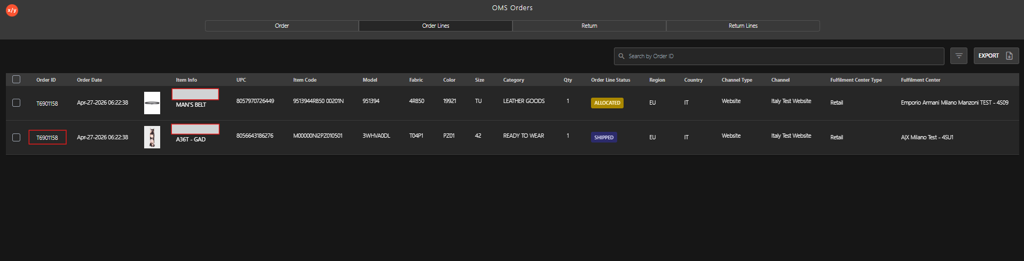
Click the Order ID.
-
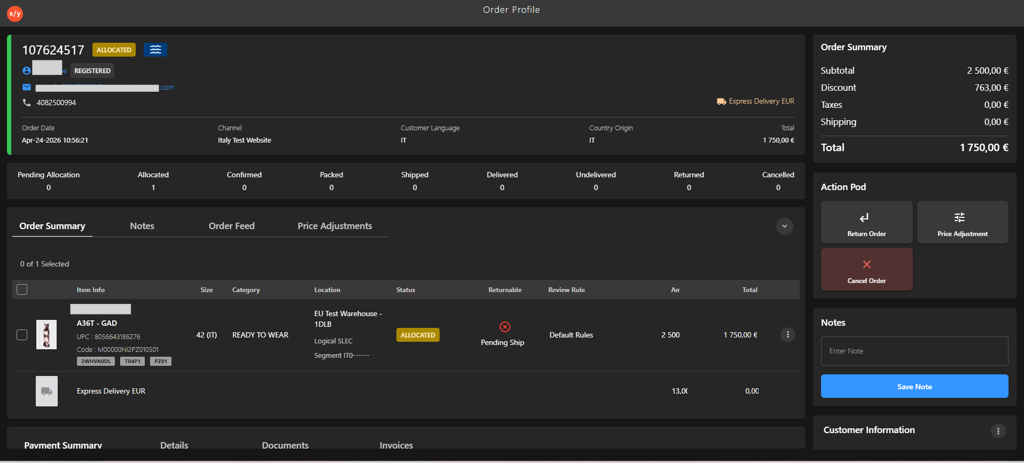
Click Order Feed Tab to verify item status.
-
Navigate to Item Feed to verify the item status.