Manually Updating Authorized Payments to Captured
Introduction
The authorized amount may not update to the captured amount due to network or integration issues during payment processing. This mismatch leaves the payment authorized after shipment. This topic explains how to manually update the payment status to captured using the Mark as Paid option to keep payment records accurate when the system fails to update automatically.
Steps to Manual Update Captured Amount
-
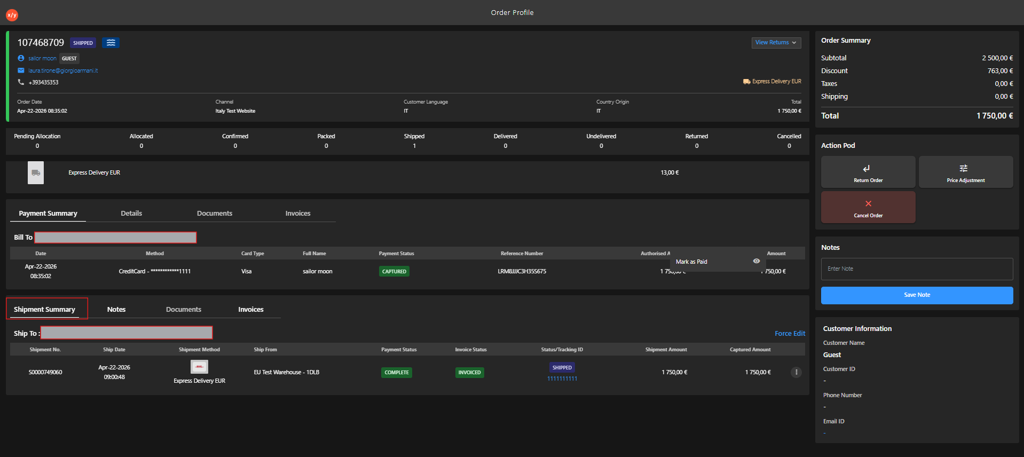
Navigate to the Shipment Summary section.
-
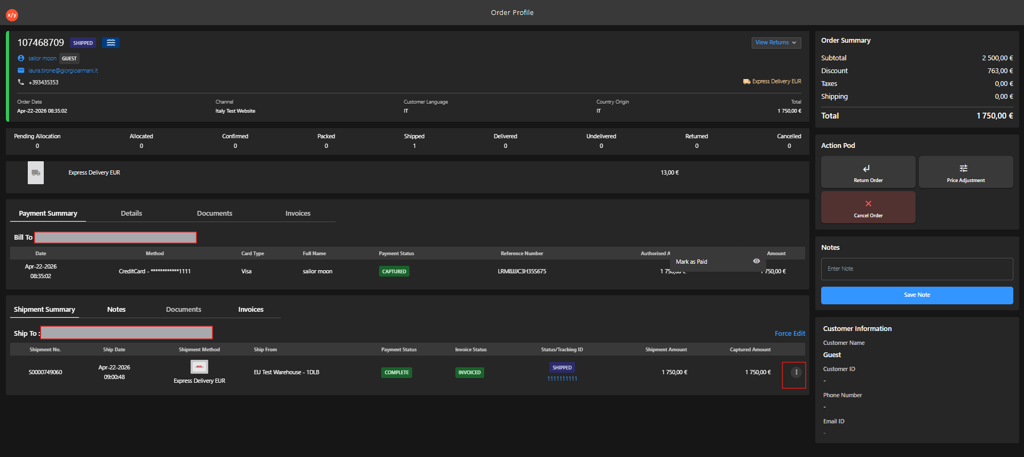
Click the Kebab menu for the relevant shipment.
-
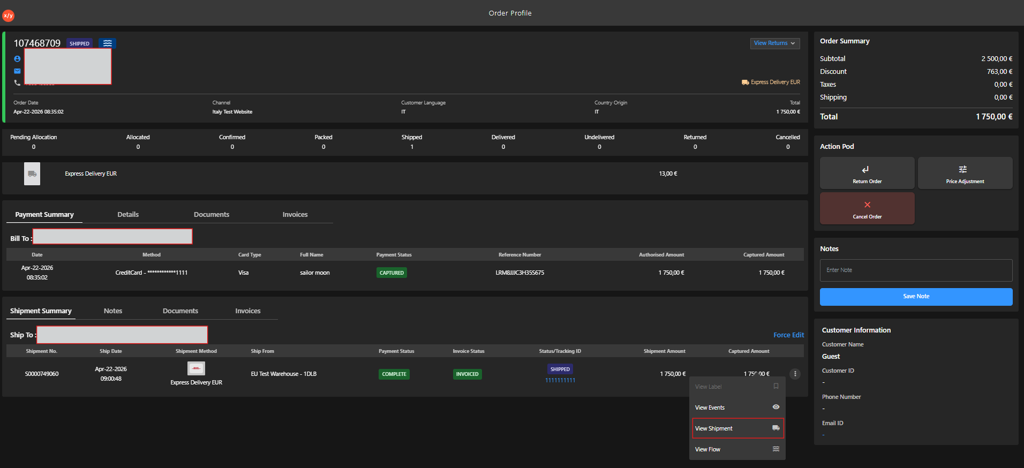
Select View Shipment.
-
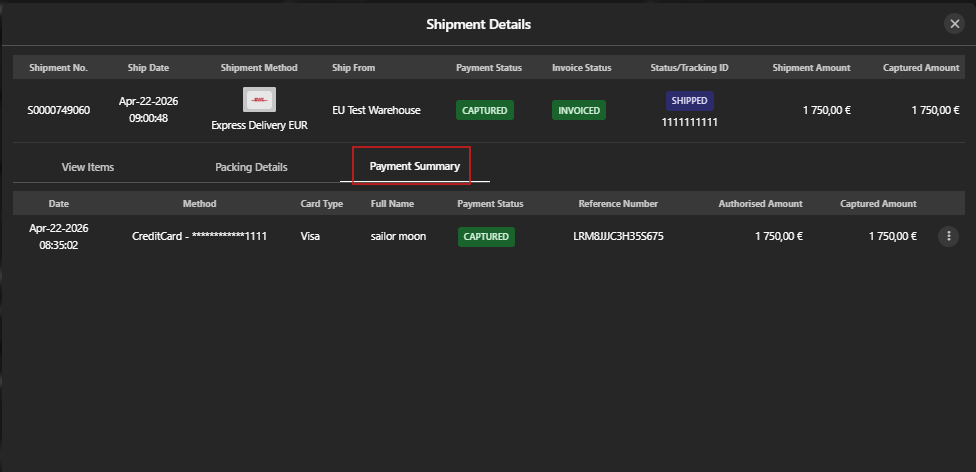
Click the Payment Summary tab.
-
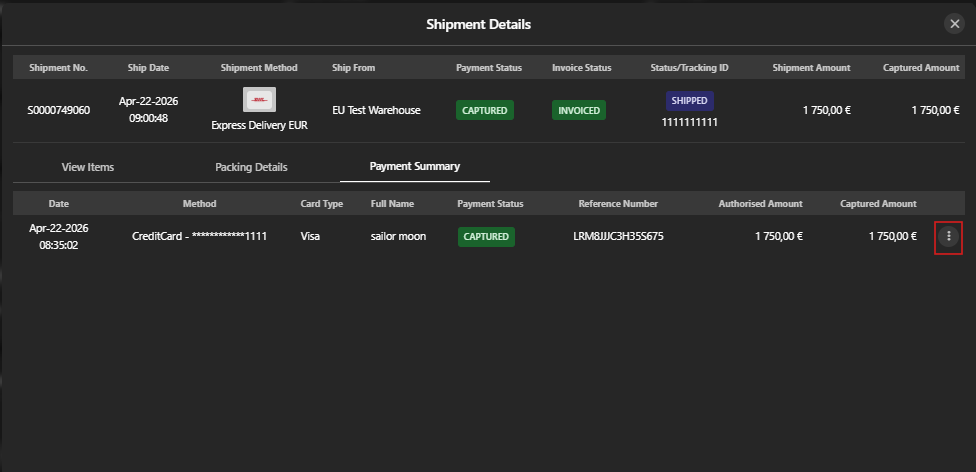
Click the Kebab menu within the Payment Summary section.
-
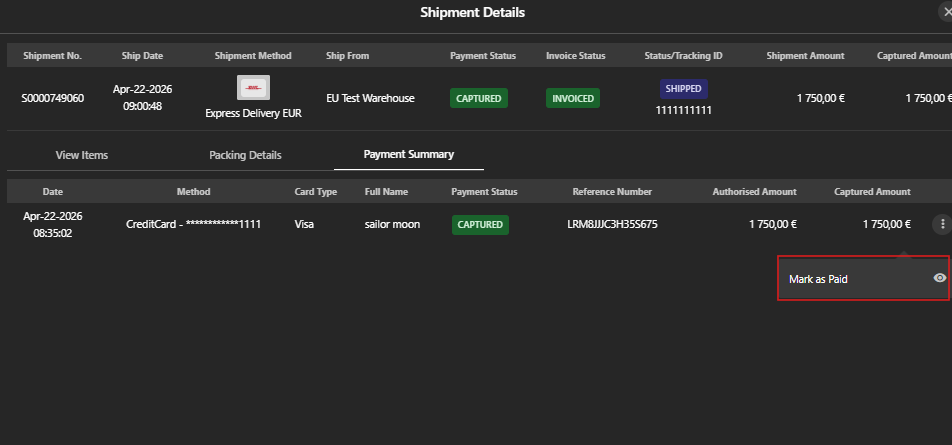
Click Mark as Paid to update the status from authorized to captured.
-
Verify that the payment status is updated successfully to reflect the captured amount.
ℹ️ To learn the difference between authorized and captured amounts, refer to Authorized Amount vs Captured Amount