Applying Price Adjustment to an Item
Introduction
This section explains how to apply a price adjustment to items in an order from the Action Pod. You can select the relevant items, choose an appropriate reason, and update the adjustment percentage so the system recalculates the adjusted price accordingly.
Steps to Apply Price Adjustment to an Item
-
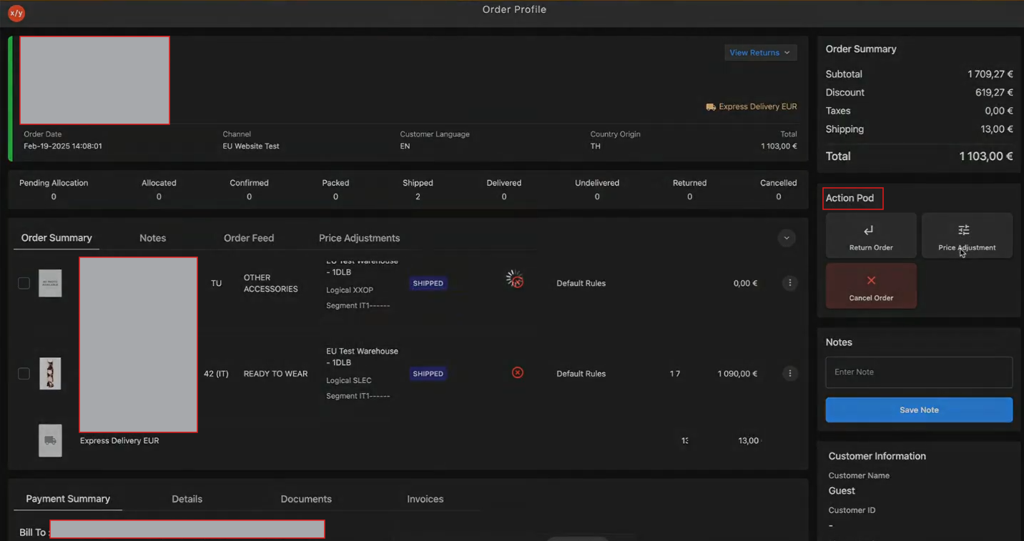
Navigate to Action Pod.
-
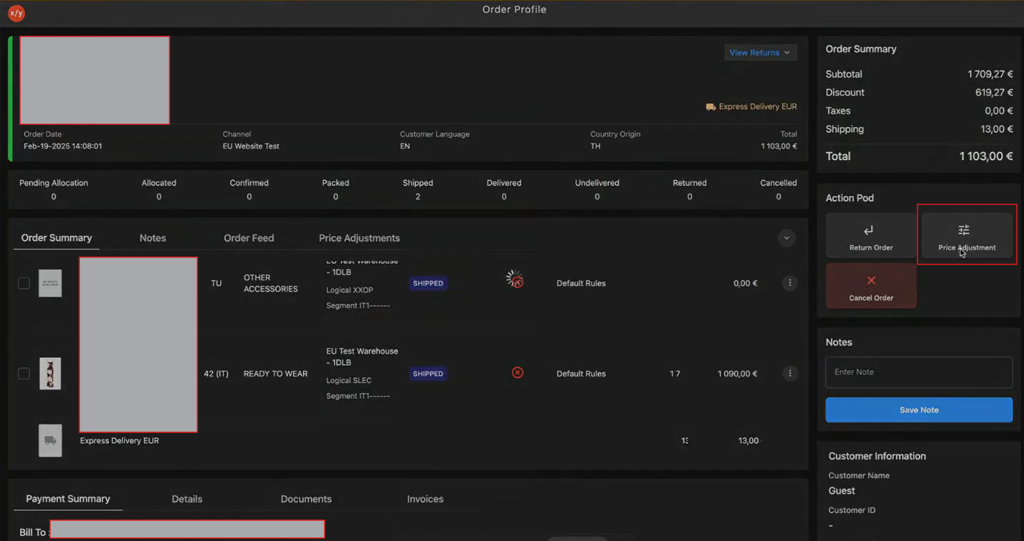
Click Price Adjustment.
-
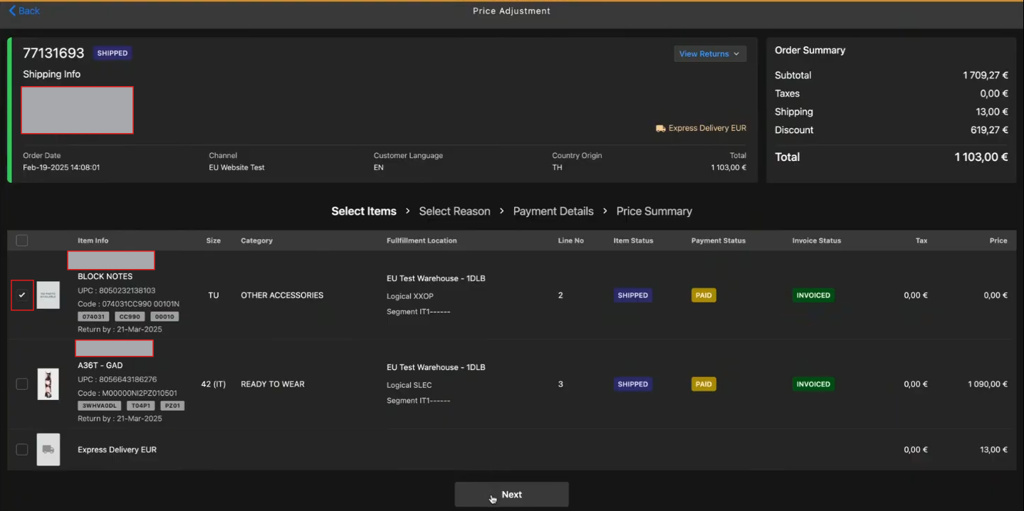
Select the items checkbox.
-
Click Next.
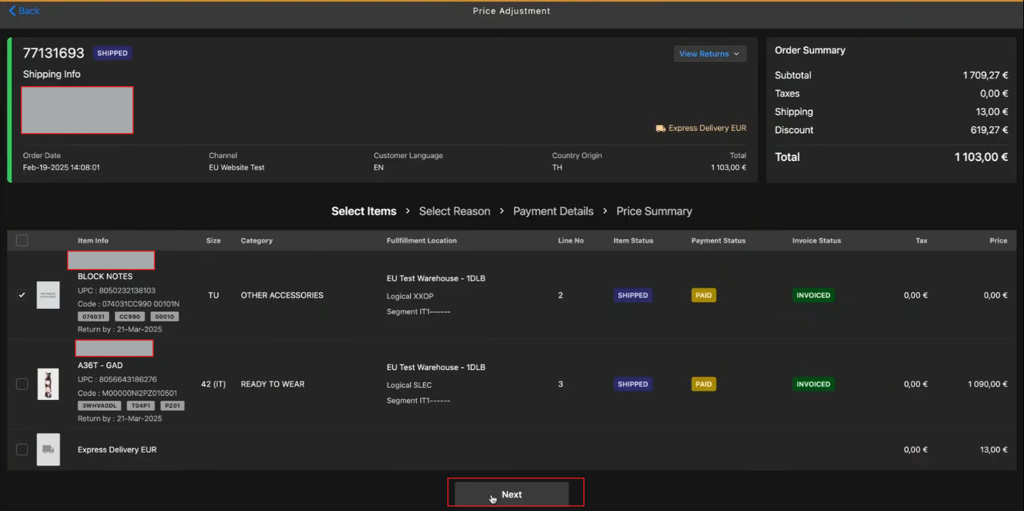
-
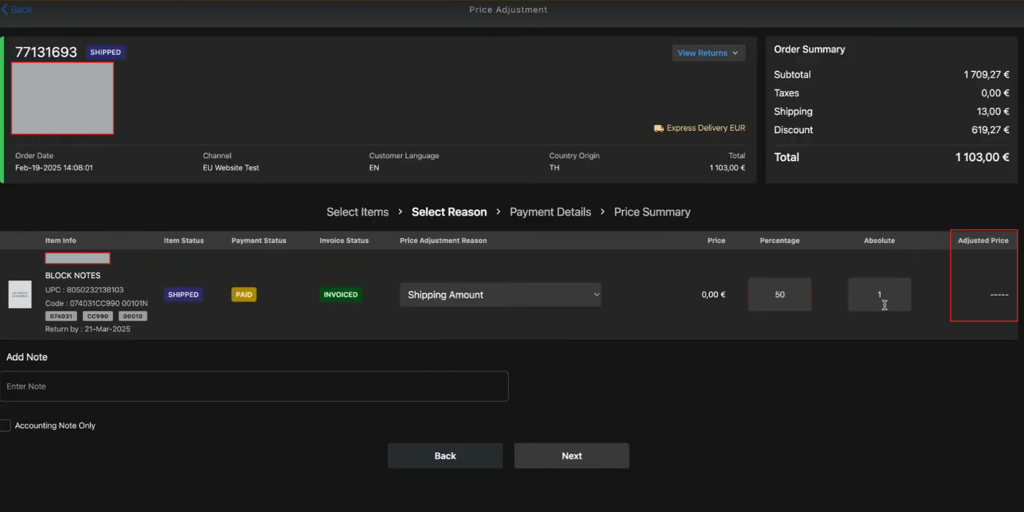
Click Select Reason dropdown menu to choose an appropriate return reason.
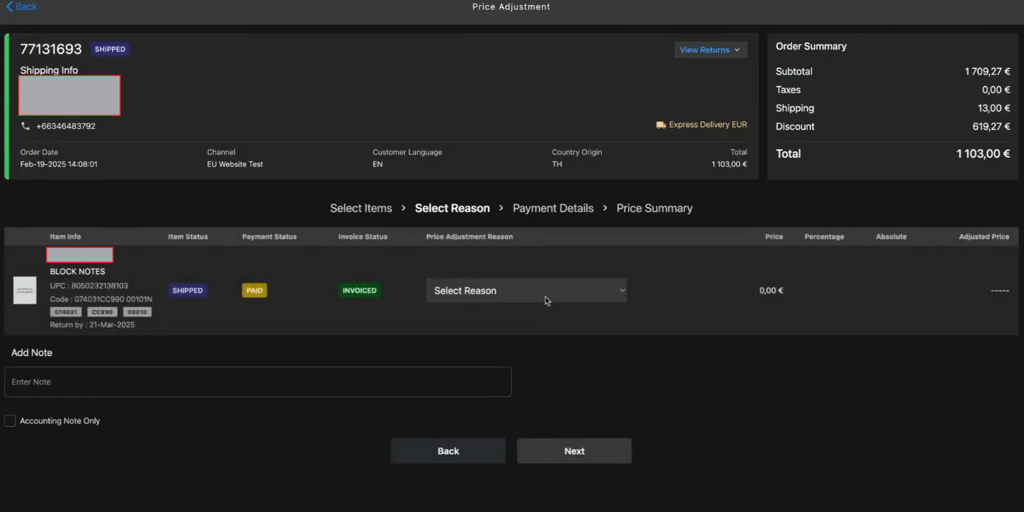
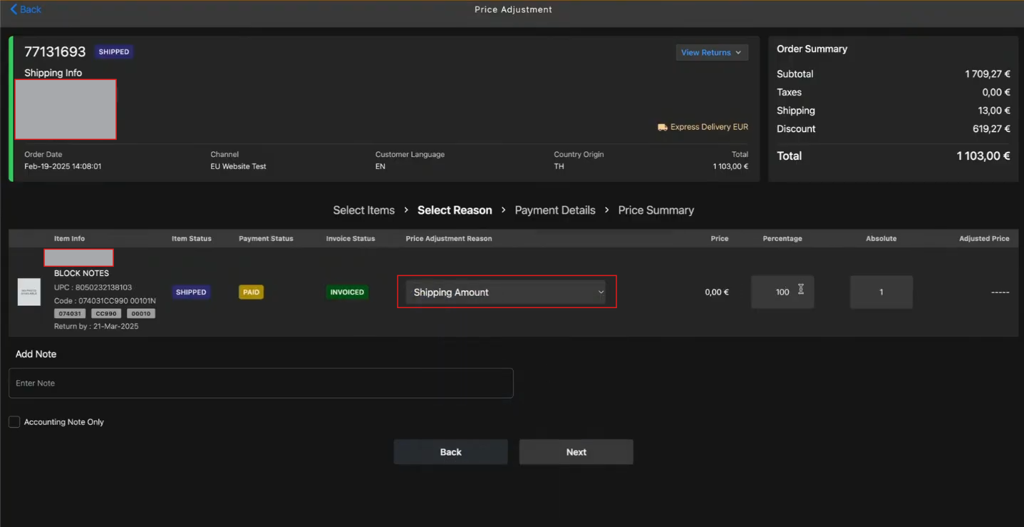
-
The system calculates the percentage, but you can update the Percentage manually.
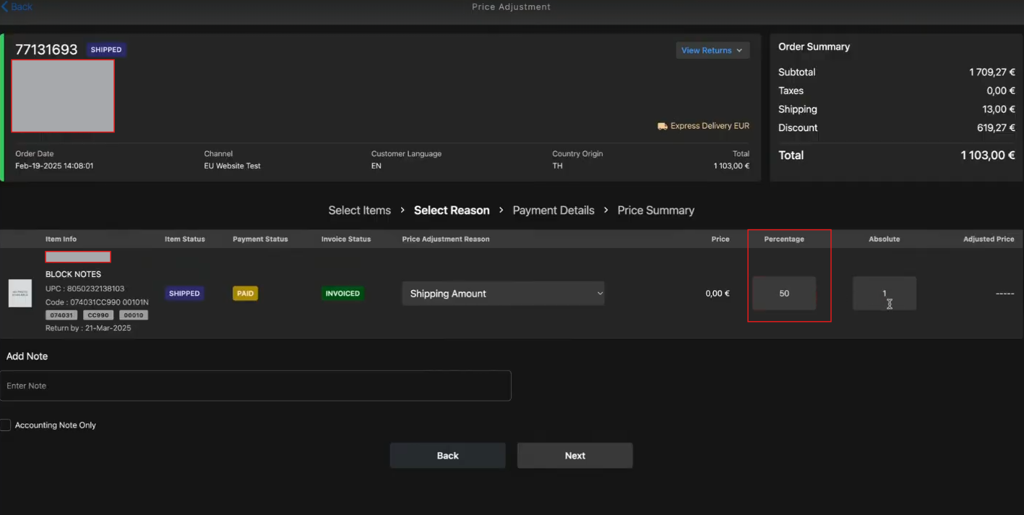
-
Adjusted price tab displays the adjusted price.
-
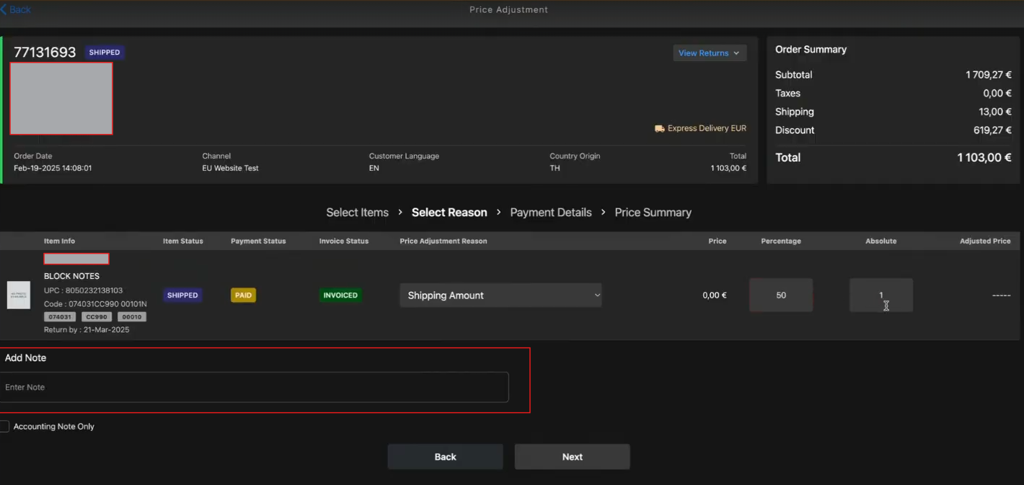
Enter the note about price adjustment in the Add Note field.
-
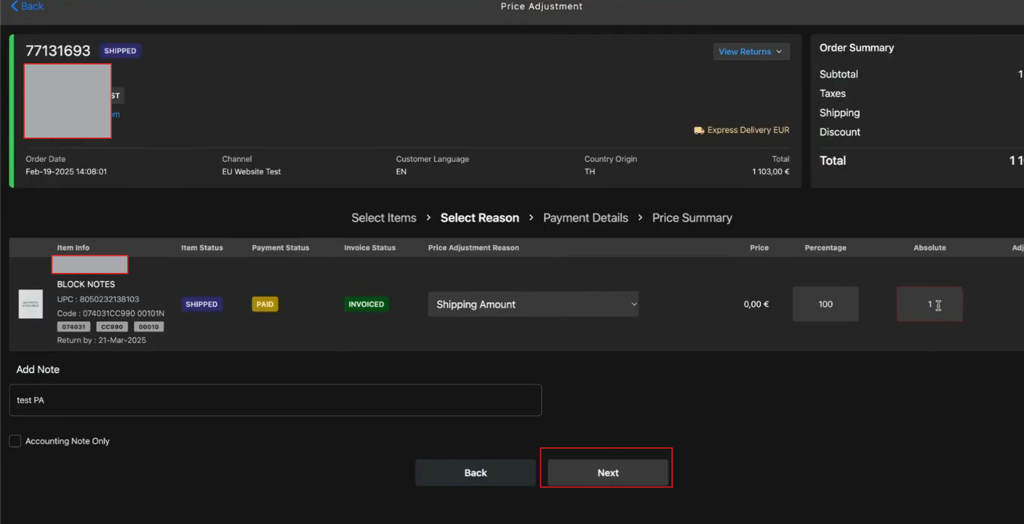
Click Next.
-
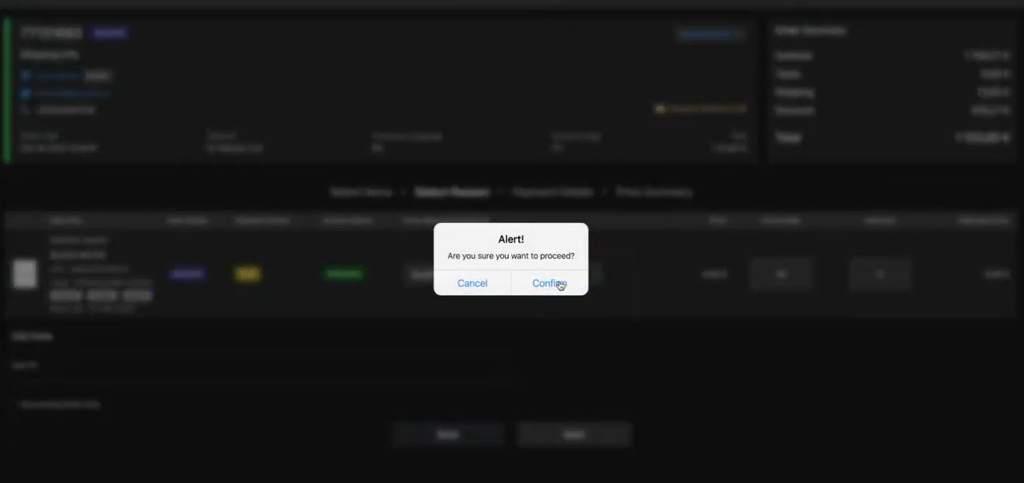
Click Confirm in the Alert popup.
-
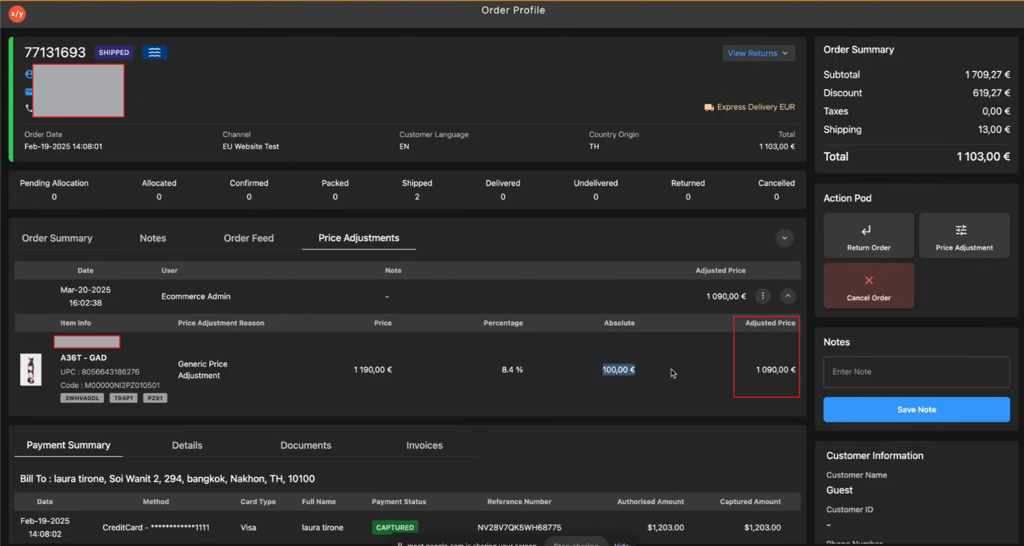
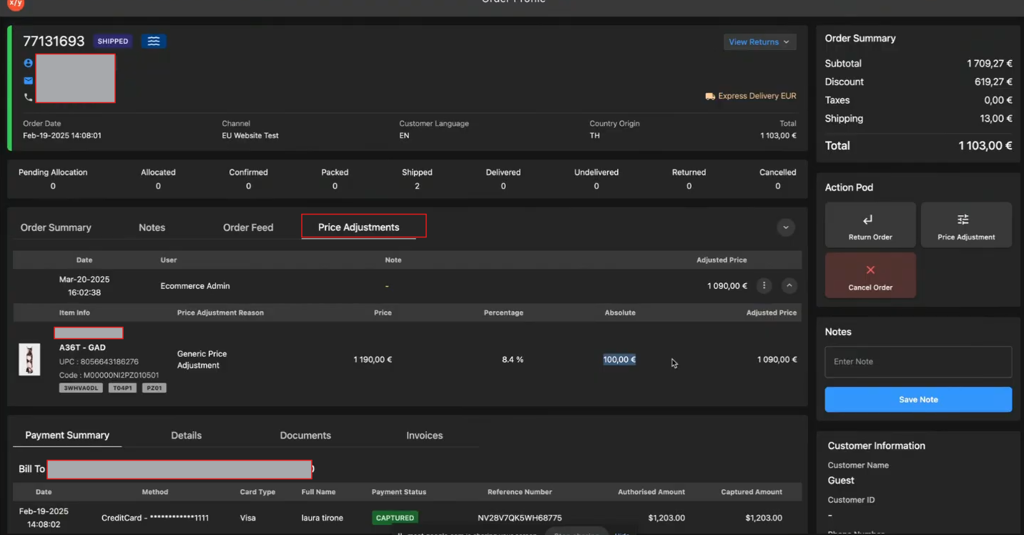
Click Price Adjustments tab.
-
Verify the adjusted price is reflected in the Adjusted Price value.